How to change a meta description on a Webflow page?

.avif)
.avif)
.avif)
.avif)
The meta tag known as the 'meta description tag' is located below the title tag of a web page and contains the description of a web page. After the title tag, the description is the second element visible to users. It is therefore crucial that this description is appealing to the user to drive traffic to your website.
In this article, we will define what a meta description tag is and explain how to modify it on a Webflow site.
I. What is a meta description tag?
A. Definition
A meta description tag is used to provide a brief description of a web page's content. It is located in the header of an HTML document and is not directly visible on the web page itself.
The meta description is used by search engines to display a snippet of relevant information from your page's content.
.avif)
Google has stated that the meta description is not taken into account for SEO of your page, unlike the title tag. Therefore, the meta description tag does not have a direct impact on SEO.
However, we know that the click-through rate (CTR) influences its ranking. As a reminder, CTR is the frequency with which users click on your page when it appears among other results.
Thus, with an attractive description, users click on your link more often. This generates qualified traffic and directly increases your digital performance. User interactions with your site, however, are thoroughly analyzed by Google, which then impacts your organic search ranking.
Here are our tips for optimizing your meta descriptions and increasing your chances of encouraging clicks.
B. Optimization
Our tips for optimizing your meta description tag:
- Relevance : The meta description must be relevant to the page's content. It should provide a clear overview of what users will find on the page.
- Using calls to action : You can include a call to action in the meta description tag to encourage users to visit your page. For example, you can use phrases like "Discover," "Learn more," "Download now," etc.
- Length : Try to keep the meta description tag between 150 and 160 characters. Search engines may truncate descriptions that are too long, which affects their readability and thus their relevance.
- Keywords : Integrate relevant keywords into your meta description tags. Keywords present in the description may be highlighted in search results, which can attract users' attention.
- Uniqueness : Each page on your website should have a unique meta description tag. Avoid applying the same description to multiple pages, as this can be considered duplicate content by search engines.
- Avoid special characters : Avoid including special characters and symbols in your meta description tags that may be misinterpreted by search engines. They risk appearing incorrectly in search results.
Tip: Re-use the keywords targeted by your title to ensure that words in your description are highlighted!
For more information on optimizing your organic SEO, please refer to our complete guide to organic SEO.
II. How to change meta description tags
A. Changing meta description tags for a static page
Once you have crafted your desired meta description, you need to configure it on your Webflow page. To do this, go to your page options by clicking on the gear icon 'Edit page settings' next to your page name.
.avif)
Then, enter your description in the 'Meta Description' field within the SEO Settings section. Finally, click Save and publish your site for your changes to be visible online.
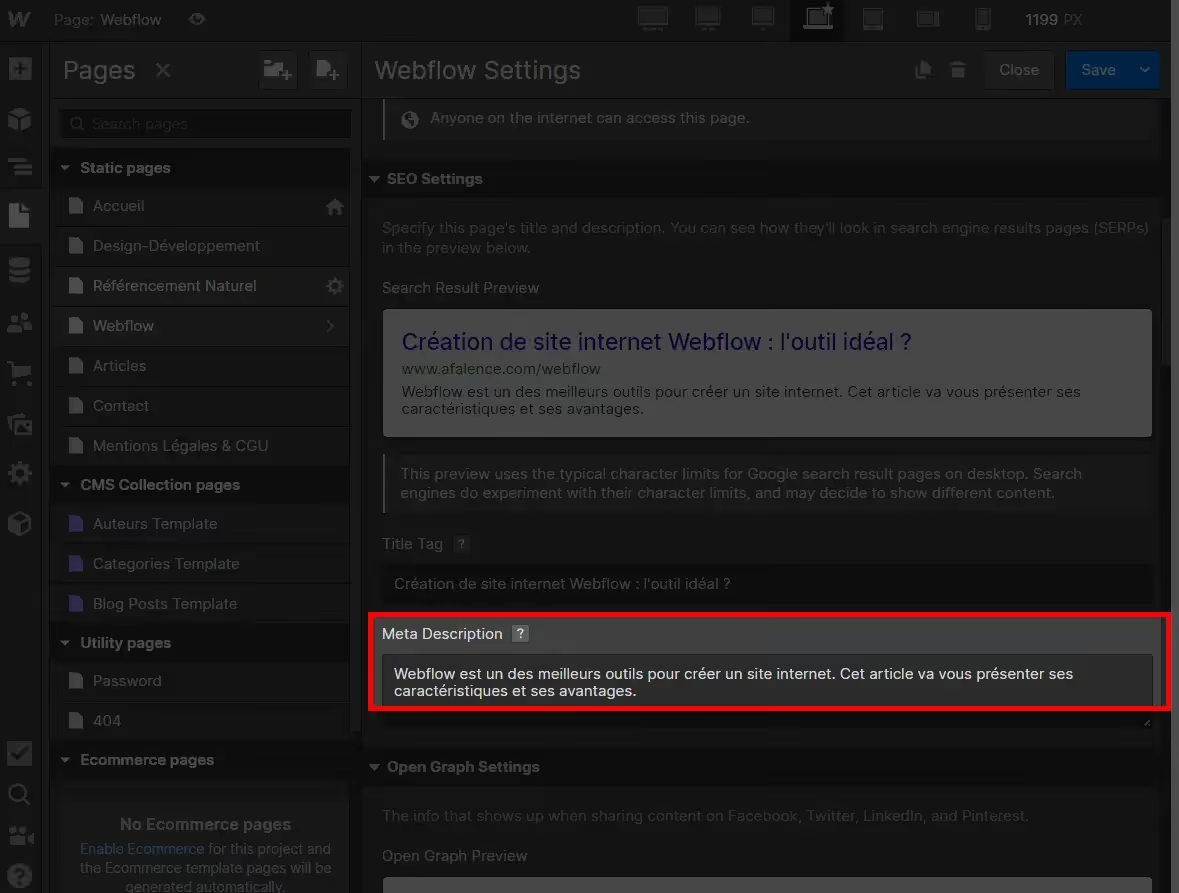
Tip: select the 'Same as SEO Description Tag' option in the Open Graph section; this allows your page descriptions to be included when you share links on social media.
B. Change the meta description tags of a dynamic page
You can also configure the meta description tag for a dynamic page generated from a CMS collection.
To do this, go to the corresponding collection and click on "+ Add Field". Then choose the item for which you want to modify the meta description tag.
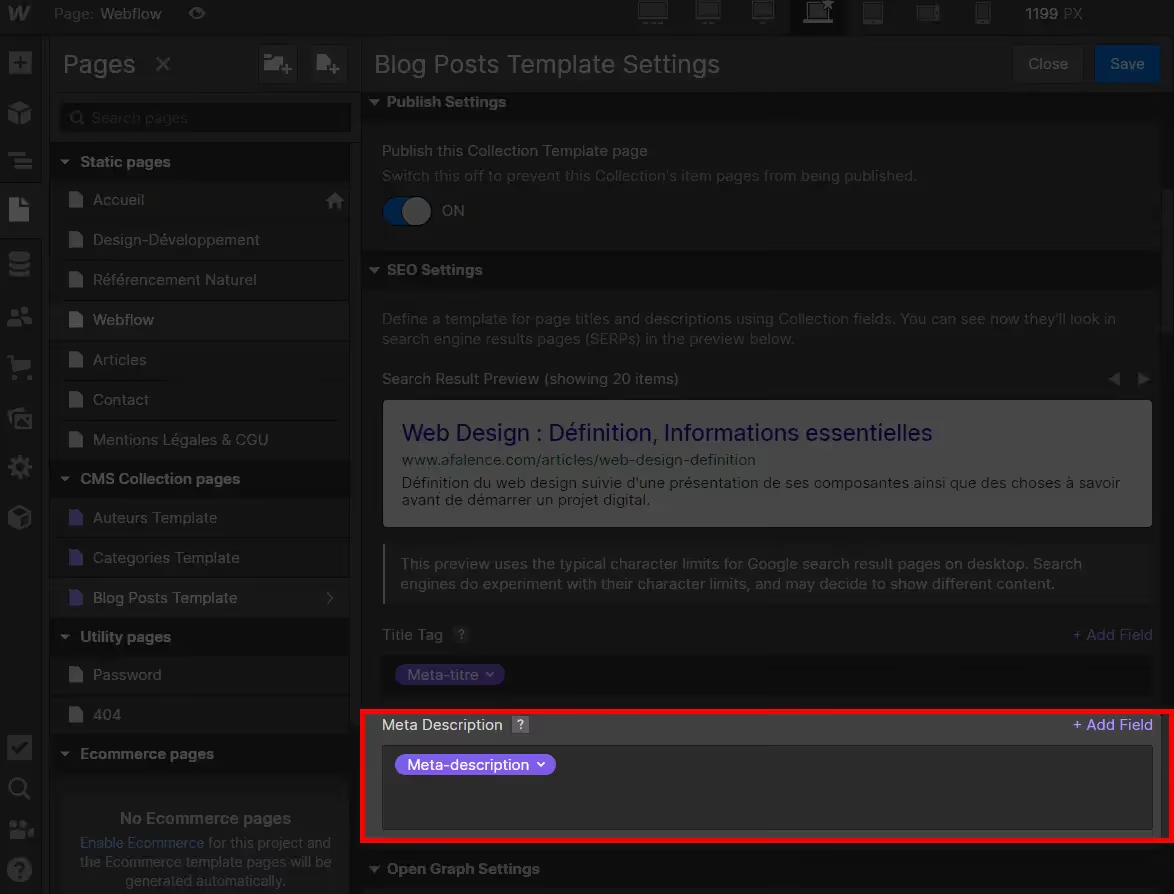
Check all your pages to ensure they contain an optimized description. Your pages' natural SEO should then improve significantly!
For more information on natural SEO, we invite you to consult our complete guide to natural SEO.
Find all our tutorials and our Webflow tips by checking out our blog!

See also our other articles
Discutons de vos besoins
Vous cherchez une agence de confiance pour votre projet ? Contactez-nous et découvrez comment nous pouvons vous aider