How to change a Webflow page's title tag?

.avif)
.avif)
.avif)
.avif)
The title tag is one of the most important pillars of SEO. Your page's title is the first element users see during a search. It should therefore be enticing enough to make them want to click! For search engines, the title tag will have a very significant impact on SEO because it's one of the first elements analyzed by bots.
Therefore, in this article, we will explain how to properly choose your title tag and how to change it on Webflow.
I. What is a title tag?
A. Definition of a title tag
A title tag is an HTML coding element used to define the title of a web page. It is placed within the document's header tags and appears in the browser tab when a page is opened.
.avif)
Optimizing the title tag is important for SEO and for attracting users. The title tag is also used by search engines to display the page title in search results.

Choosing your title is therefore a crucial step for your pages' SEO : search engines must understand the content to rank your page accordingly, and users must be encouraged to click on the link.
B. Optimizing Title Tags
Here are some tips for optimizing your title tags:
Relevance : The title must be relevant to the page's content. It should concisely and accurately summarize the main topic of the page.
Length : It is recommended to keep the title tag short, generally between 50 and 60 characters. Search engines may truncate titles that are too long, which harms their readability.
Keywords : Including effective keywords in the title is important, especially those likely to be searched for by users. This helps improve the page's ranking in search results.
Uniqueness : Each page on your website must have a unique title. Avoid using the same title for multiple pages, as search engines may consider this duplicate content.
Avoid special characters : Avoid using special characters or symbols in the title tag. They can be misinterpreted by search engines or appear incorrectly in search results.
By following these tips, you can optimize your web page's title tag to improve its SEO and increase its appeal to users.
Tip: to further optimize your page's SEO, differentiate your title tags from your H1 tags. This will allow you to target a wider range of keywords and increase your chances of achieving good search engine rankings.
For more information on organic SEO, we invite you to read our complete guide to organic SEO !
II. How to change a title tag on Webflow?
A. Static Pages
Now that you have the perfect title in mind, you need to configure it on your Webflow page. To do this, go to your page options by clicking the "Edit page settings" gear icon next to its name.
.avif)
Now simply enter your title in the "Title Tag" field, then click "Save" and publish your changes.
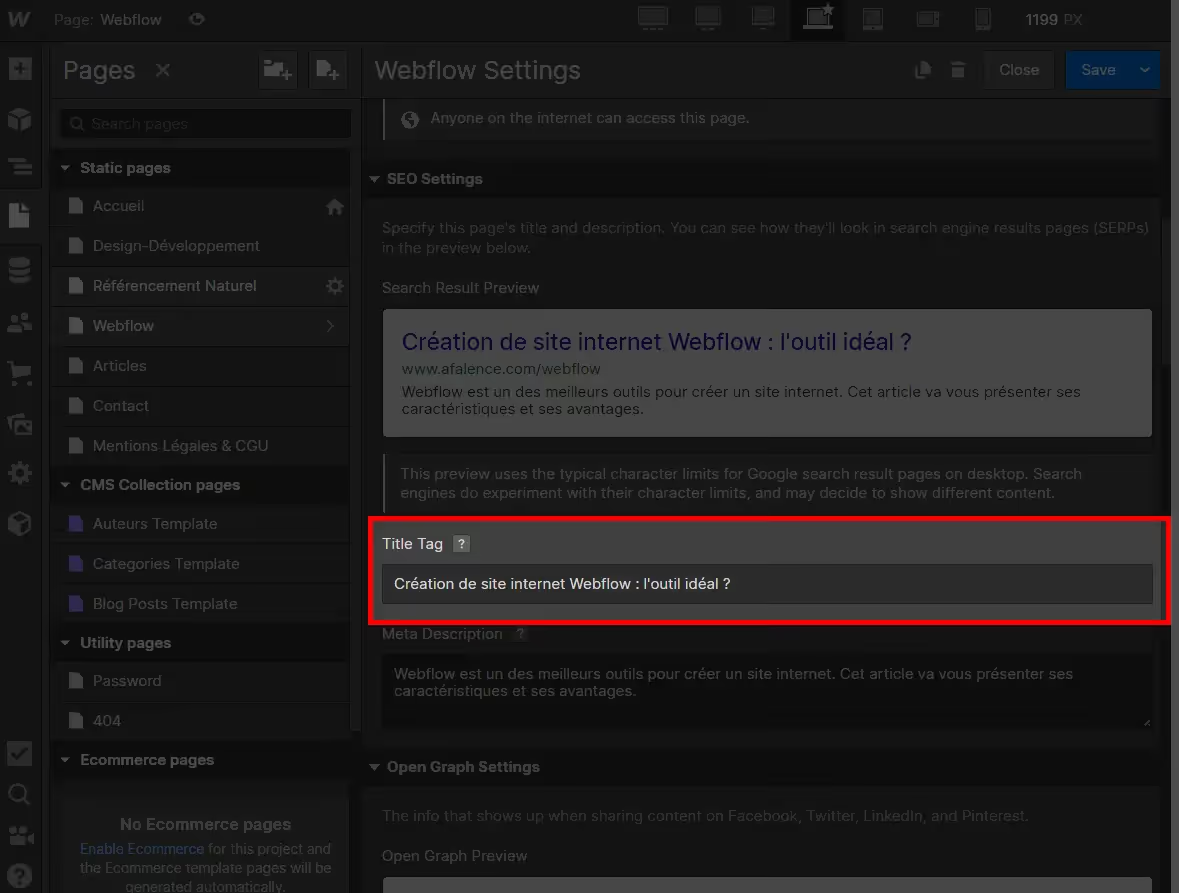
Tip: Select the "Same as SEO Title Tag" option in the Open Graph section so that links created when sharing on social media include your page titles.
B. Dynamic Page
For a page dynamically generated from a CMS collection, you can set the title tag using a field from your collection. To do this, click "+ Add Field" and select the corresponding element.

Your page now has a title optimized for SEO! Review all your pages to ensure they each have a relevant title that will generate traffic.
Now that your title tags are set up, follow our guide on meta description tags to continue optimizing your site's SEO!
For more information on SEO, we share our tips in our comprehensive guide to SEO.
You can also find our Webflow tutorials on our blog !

See also our other articles
Discutons de vos besoins
Vous cherchez une agence de confiance pour votre projet ? Contactez-nous et découvrez comment nous pouvons vous aider