How to: Change Text Selection Color in Webflow

.avif)
.avif)
.avif)
.avif)
Modifying default elements on your website, such as the "scrollbar" or text selection color, allows you to personalize your users' browsing experience.
The difference between a memorable website and a more standard one often lies in the details!
This article outlines the steps to change the text selection color on your Webflow project.
I. Why Change the Text Selection Color?
Changing the text selection color on a website offers various benefits to your users.
· Adherence to Brand Guidelines: your browser's default selection color (usually light blue) may not match your color palette. The appearance of this new color on your page can clash with the rest and not be harmonious. It may therefore be preferable to use a color from your brand guidelines to avoid missteps.
· Strengthening Brand Image: by using your primary color, such as the main color of your logo, for example, you can strengthen your company's image by directly referencing your brand when a user selects text on your site.
· Improved readability: a major advantage of changing the text selection color is also to improve text readability if the contrast is insufficient. Indeed, this change makes your website more accessible to people with visual impairments who have difficulty distinguishing certain colors.
Warning: For readability, it's important to choose your selection color carefully to ensure sufficient contrast with the text color. Also, modify the text selection color to preview the result and achieve an effective outcome!
II. Modifying the selection color with CSS code
A. Customizing the selection color
To change the text selection color on your site, you will need the following code:
::selection {
background-color: #1e3790;
color: #faf9f7;
-webkit-text-fill-color: #faf9f7;
}
The code mentioned above configures the text selection color for most internet browsers.
::selection is a pseudo-element used to customize the text segment selected by a user.
With background-color: #1e3790, we determine the background color of this selection, which here is a deep blue.
On the other hand, color: #faf9f7 sets the text color when selected, in this case an off-white.
The property -webkit-text-fill-color: #faf9f7 is specific to Webkit (a browser engine) and is also used to change the text color, ensuring that the formatting is correctly applied across all Webkit-based browsers.
To change the selection and text color, simply customize this code by replacing the hexadecimal color values with your own !

B. Ensuring compatibility across different browsers
As mentioned earlier, not all search browsers (Chrome, Firefox, Safari, etc.) operate with the same "engine" and are therefore not compatible with all CSS functions.
To ensure the text selection color works correctly across all browsers, add this snippet of code:
::-moz-selection {
background-color: #1e3790;
color: #faf9f7;
-webkit-text-fill-color: #faf9f7;
}
::-webkit-selection {
background-color: #1e3790;
color: #faf9f7;
-webkit-text-fill-color: #faf9f7;
}
The pseudo-element moz-selection will apply your changes to Mozilla browsers, and webkit-selection will handle modifying browsers that use Webkit!
III. Applying the Changes to Your Webflow Site
A. Site Settings
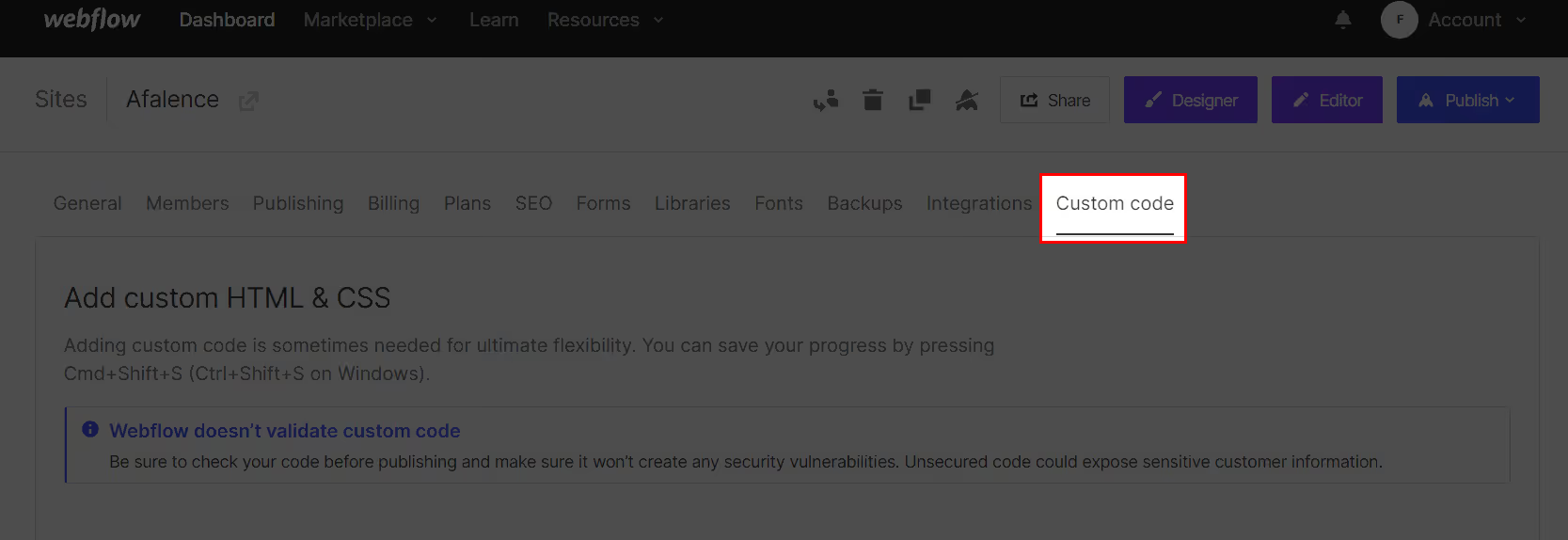
To apply your new selection color across your entire site, go to your Webflow project settings. To do this, click on the "settings" tab for your site from the Dashboard.

Once in your settings, navigate to the "custom code" tab.
B. Add the CSS Code
Once you're in the right place, you can copy and paste the code below into the "Head Code" section of the Custom Code page.
<style>
::selection {
background-color: #1e3790;
color: #faf9f7;
-webkit-text-fill-color: #faf9f7;
}
::-moz-selection {
background-color: #1e3790;
color: #faf9f7;
-webkit-text-fill-color: #faf9f7;
}
::-webkit-selection {
background-color: #1e3790;
color: #faf9f7;
-webkit-text-fill-color: #faf9f7;
}
</style>
Don't forget to adjust the color values to suit your preferences!
Conclusion
Your Webflow site's selection color is now customized! To check the results, publish your site and admire your work. [SEGSEGMENT 10]
Thanks to this custom experience, you can
increase your site's readability by boosting font contrast and provide an extra detail to further engage your users.
If you'd like more Webflow tips, we invite you to explore
our Webflow tutorials! Tutorial: Changing the Text Selection Color on a Webflow Site

See also our other articles
Discutons de vos besoins
Vous cherchez une agence de confiance pour votre projet ? Contactez-nous et découvrez comment nous pouvons vous aider