How to add structured data to your Webflow site?

.avif)
.avif)
.avif)
.avif)
Structured data is an essential element of SEO. They enable Google to better understand the content and nature of your site's pages. Structured data also allows you to achieve position 0 on Google with Rich Snippets!
But what are Rich Snippets, and how do you configure structured data on your Webflow site? You'll learn all about it in this article.
I. What is Structured Data?
1. What is Structured Data?
Structured data is information organized in a predefined way to make it easier for search engines to understand. They enable Google to quickly understand your page's content to improve its SEO.
Structured data is defined by a schema developed by schema.org. Today, they are a cornerstone of natural search engine optimization.
Using structured data has two positive effects:
- Improved natural search engine optimization (SEO)
- The possibility of being displayed as a Rich Snippet.
2. What is a Rich Snippet?
A Rich Snippet is a box that appears before the first organic results on a Google search page. It's also known as position zero. A Rich Snippet significantly increases traffic to your site.
Various types of elements can be Rich Snippets. Here are two examples.
Products from e-commerce sites:

Events in a specific location:

Structured data is also used for blog articles, which will optimize their natural search engine ranking. We strongly recommend integrating them if you run a blog to increase your site's traffic!
II. How to build and write structured data?
Structured data is built as a JSON-LD file or microdata. We recommend using JSON-LD, which is simpler to use and more readable within your code.
The tag to add to your code will look like this:
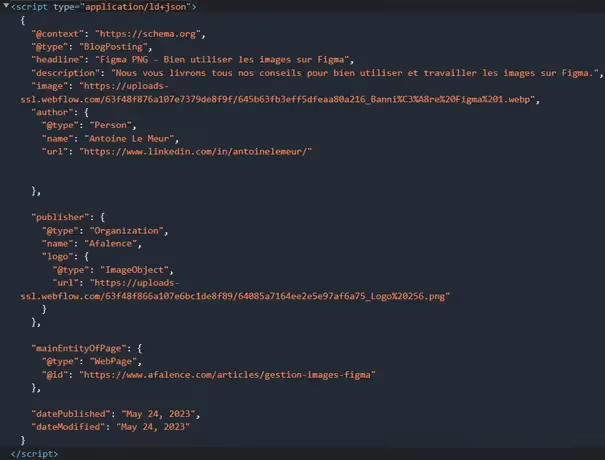
This code might seem daunting, but don't panic, it's simpler than it seems!
It's actually a simple list of structured elements that can be quickly processed by machines.
It includes:
- A type
- A title
- A description
- An image
- An author
- Publication date
- Last modified date
These specific elements are recommended for blog posts, for example. For more information on categories suggested for other situations, we encourage you to consult the Google documentation on this topic.
Once you have a list of elements to define as structured data, tools like Markle Markup Generator enable you to automatically generate the data in JSON format.
You can then test your newly generated code using Google's Structured Data Testing Tools.
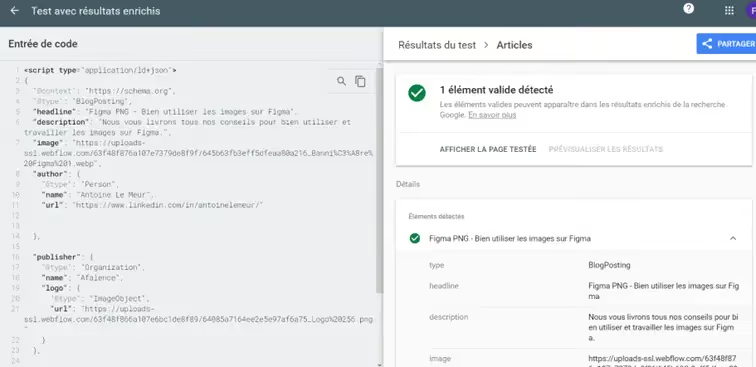
Once your script is working correctly, you can integrate it into Webflow !
III. How to add structured data on Webflow?
1. Static page
For a static page, first go to the settings. To do this, click on the gear icon next to the page name.
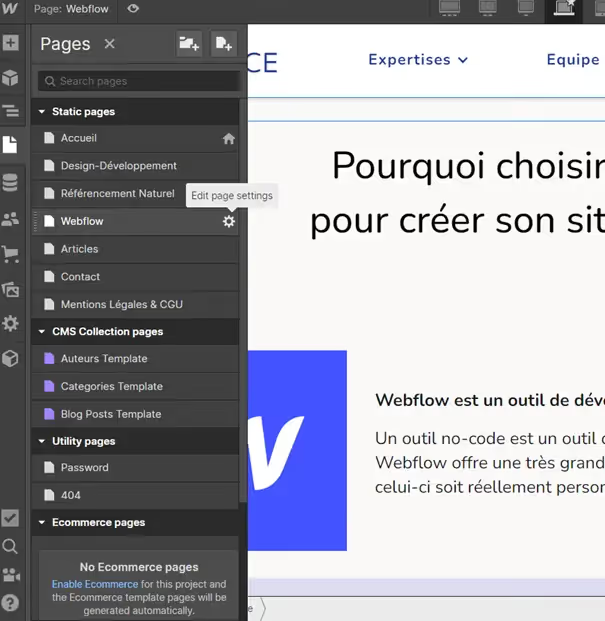
Once the menu is open, go to the "Custom Code" section and paste your structured data into the "Inside head tag" text area.
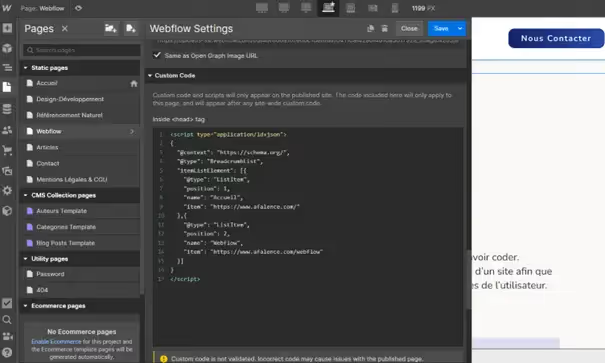
Finally, click Save. All that's left is to publish your site and your page will contain structured data!
2. Dynamic page from a CMS collection
For a dynamic page, it's more difficult to paste all the structured data because it will depend on the content of the page in question.
To overcome this problem, we will use the dynamic elements offered by Webflow.
Once again, go to your collection page settings, in the "Inside head tag" section.
Modify all relevant fields by selecting the correct dynamic elements. To do this, use the "+ Add Field" button.
You will then have structured data similar to the following:
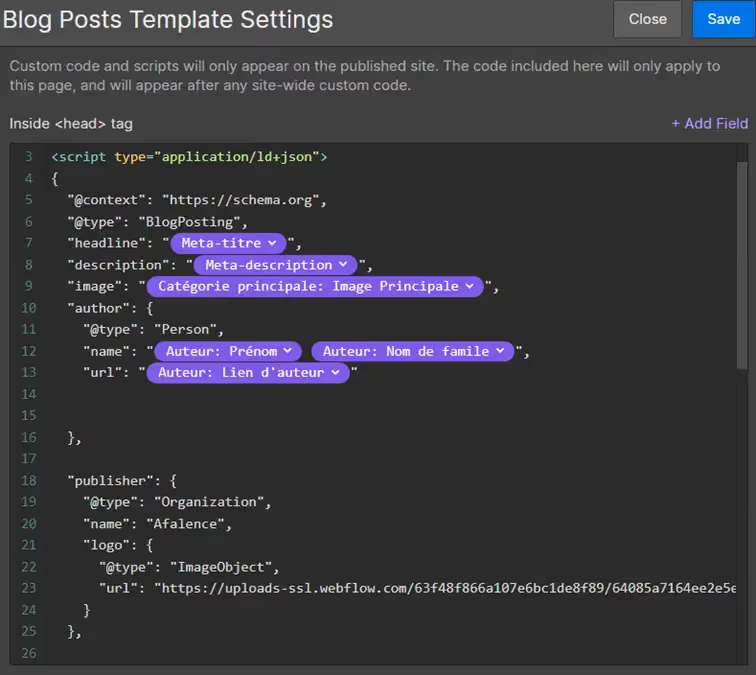
Once the fields are selected, click Save and then publish your site for the changes to take effect.
Congratulations, the pages on your site should see their SEO significantly improve once Google's bots have taken your changes into account!
To further optimize your organic SEO, we invite you to read our complete guide to organic SEO.
To further enhance your Webflow skills, also find all our Webflow tutorials!

See also our other articles
Discutons de vos besoins
Vous cherchez une agence de confiance pour votre projet ? Contactez-nous et découvrez comment nous pouvons vous aider