Using Lottie with Figma: All the essential information

.avif)
.avif)
.avif)
.avif)
In recent years, Figma has established itself as the most comprehensive and optimized tool for creating digital product mockups.
Figma is constantly growing in popularity and pushing its boundaries over time. This continuous improvement is mainly due to three combined factors:
- Figma itself, which constantly reinvents itself and offers additional features. The latest example is the " Dev Mode ", which greatly facilitates collaboration with developers who reproduce Figma mockups.
- The Figma community, which creates numerous plugins and makes them available to other users, often for free.
- Digital design tools and applications, which very often offer a specific plugin to integrate with Figma.
Thus, everyone who interacts with Figma, directly or indirectly, helps the tool grow.
In this article, we will provide an overview of the animated image and animation application " LottieFiles " and explain how to use it effectively on Figma.
I. What is LottieFiles
LottieFiles is a website where you can find a vast number of animated images and animations to incorporate into your design work.
Lottie is a collaborative tool where anyone can create or add an animation to make it available for the entire community.
Additionally, Lottie also offers the ability to rework and modify animations created by others to perfectly integrate them into our work. This can be useful for modifying size, components, or changing colors, for example.
Lottie is a highly connected tool that allows you to easily integrate your creations into various digital tools, such as After Effects, Canva, Adobe XD, Framer, Figma, Wix, Wordpress, Webflow...
Effectively using Lottie is therefore an excellent skill to develop to enhance your designer toolkit!

II. How to use Lottie Files
To effectively use Lottie Files, start by visiting the official Lottie Files website, then create a user account.
Using Lottie is free for a single user as long as your activity primarily involves importing animations without making any modifications to them.
1. Overview of the Lottie Files Workspace
Once your account is created, you gain access to an initial workspace, or "Workspace," where you can create a folder and upload up to 10 animations for free.
You can create other workspaces, but you'll need to upgrade to a paid version to share your workspaces or increase your folder and upload limits.
Additionally, you also have access to various elements directly from your workspace ("Dashboard"):
- The animations you have created and shared
- The collections of elements you have created
- Files, workspaces, or collections that have been shared with you

As you can see, the interface is ergonomic and intuitive.
2. Search and download Lottie animations
To find the Lottie animation you need, simply go to the site's homepage and perform a keyword search. Several hundred, or even thousands, of animations will then be offered to you!

Tip: Perform your searches in English so that the search engine finds the most relevant results possible!
Once you have selected the animation you need, it's time to download it. One of Lottie's big advantages is that the tool offers multiple download options. Here are the two file types we find most useful:
- "GIF" file: useful for easily integrating the animation into your visual project, especially on Figma. This will allow you to easily bring your mockups to life.
- "Lottie JSON" file: a vector format useful for reworking the element later and for developers, so that it is as flexible and modifiable as possible.

Please note: As long as you use the free version of Lottie, you will only be able to import GIFs in small sizes, meaning low resolution. You will not be able to increase their size without compromising image quality.
Tip: When using the free version, remember to delete animations to download new ones once you've downloaded 10. Additionally, you don't need to download the animations to include them in your Figma space.
III. Using the Lottie plugin in Figma
Lottie has a plugin specifically designed for Figma. If needed, read our article explaining how to use a plugin in Figma.
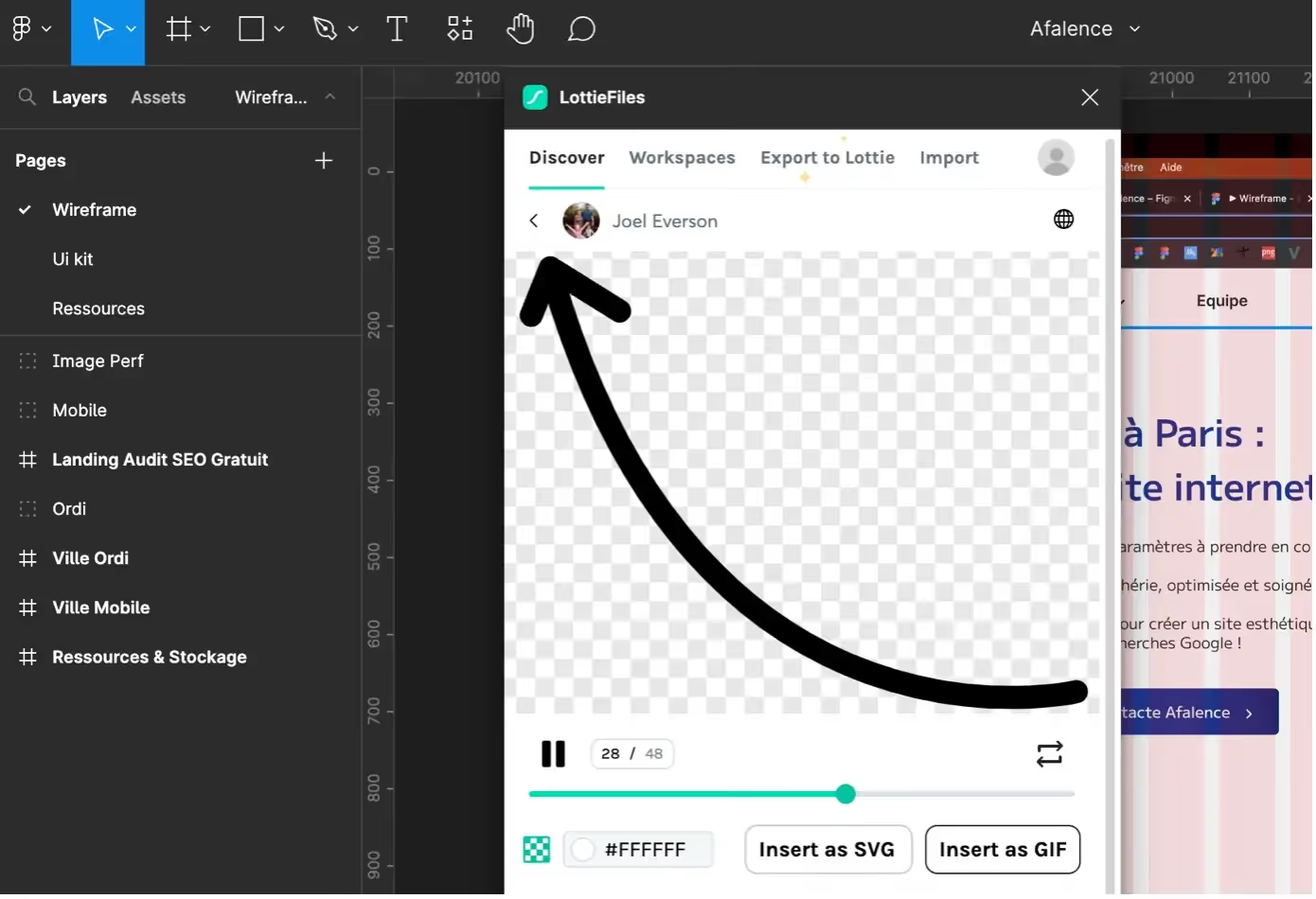
The first time you use Lottie in Figma, the plugin will ask you to log in and automatically connects your Figma account with your Lottie account.
This gives you access to Lottie animations directly from your Figma workspace. Launching the plugin directly opens a modal window with an interface similar to the LottieFiles website.

Thanks to the Lottie plugin, you have access to your previous downloads as well as the entire animation library uploaded by the community.
To integrate an animation into your work, simply select it and click "Insert as GIF". Your animation is on your design, congratulations! You can also insert it as an SVG to modify it as much as you like.
IV. Creating Lottie Animations in Figma
To create your own Lottie animations using Figma, follow these steps:
Start by creating a visual to animate within an isolated Frame.
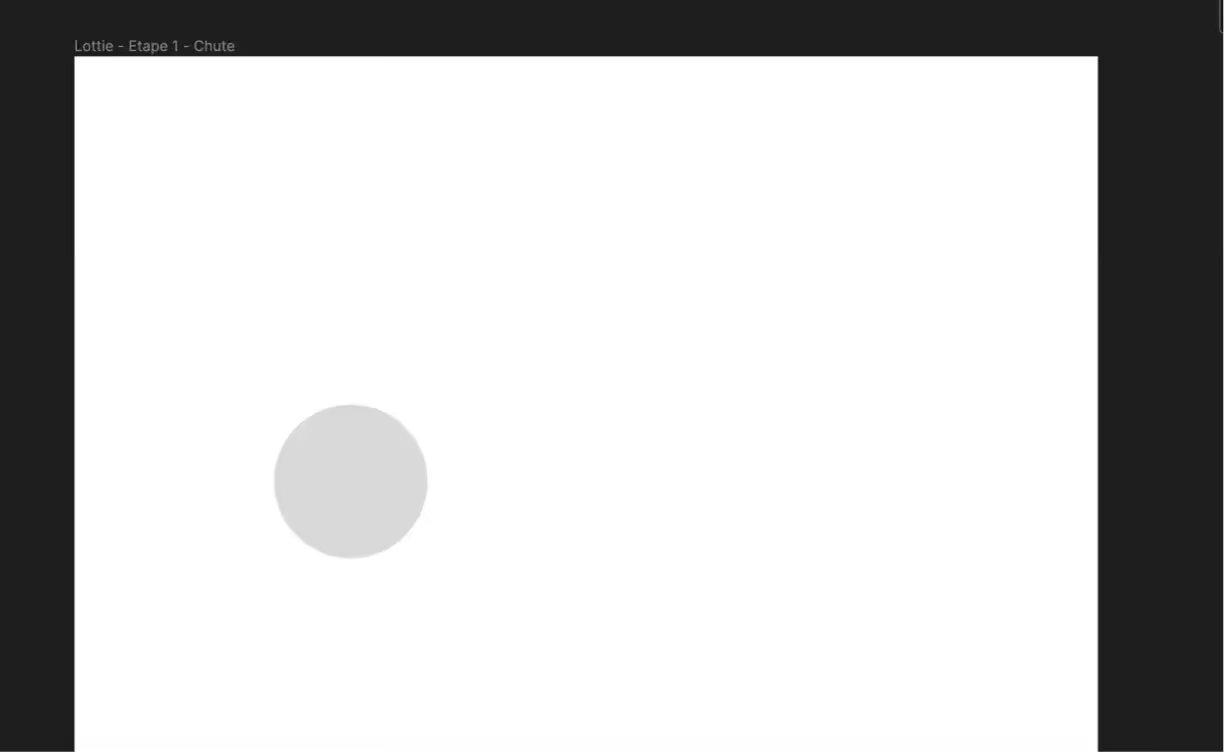
Then duplicate this Frame as many times as you want to include animations in your visual.
In each duplicate, modify the visual element to create one or more animation steps. These can be considered the different states of your animation.
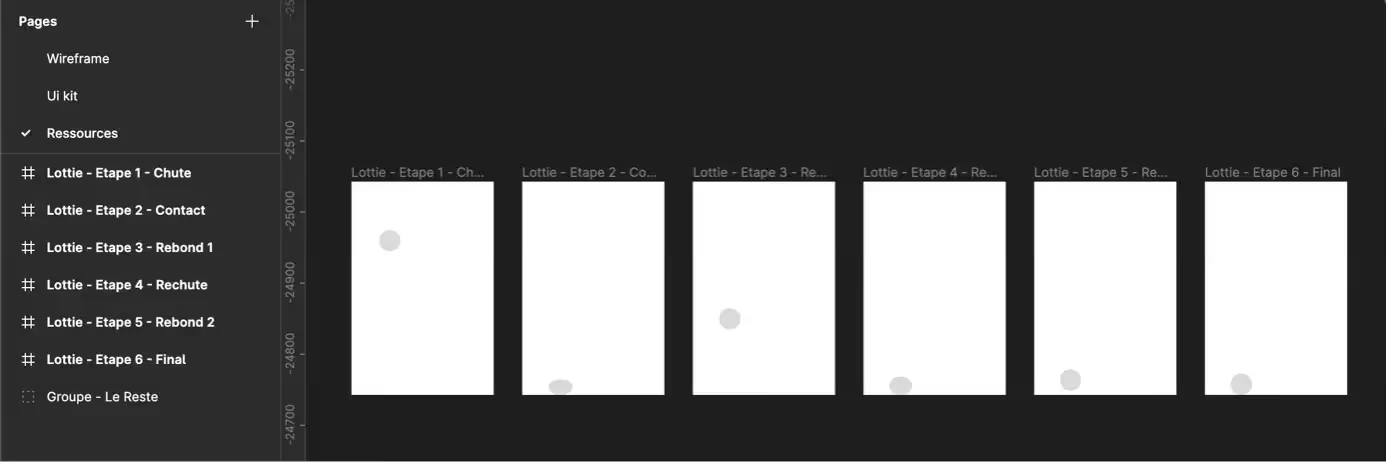
Then launch your Lottie plugin in Figma and go to the 'Export to Lottie' tab. Select all your frames.

Then simply click on the 'Export to Lottie' button to preview your animation.

Preview your animation to ensure it meets your expectations, then you can create a GIF directly in Figma. You can also save it in your Lottie Workspace so you can access it whenever you want.
You now know how to use Lottie's full free version and its essential features. You also know how to leverage the benefits of the Lottie plugin on Figma and create your own animations with Figma!
We encourage you to continue exploring these tools on your own to gain unparalleled expertise.
If you'd like to learn more about Figma or plugins in general, we invite you to check out our blog articles on the topic.

See also our other articles
Discutons de vos besoins
Vous cherchez une agence de confiance pour votre projet ? Contactez-nous et découvrez comment nous pouvons vous aider