Webflow Logic: The guide to automating your site

.avif)
.avif)
.avif)
.avif)
Previously available only to those who applied, the beta version of Webflow Logic is now available to everyone!
Thanks to Webflow Logic, you'll be able to create "Flows"—automations that will save you time on repetitive tasks.
For example, Webflow Logic allows you to automate the following tasks: sending an email to a prospect who filled out a form, updating your CRM with your users' information, displaying customer reviews, and more. There are many features available!
This article aims to be an introductory guide to Webflow Logic. It will walk you through a practical example to learn how to set up a customer review section on your Webflow site.
I. What is Webflow Logic?
Webflow Logic is a feature directly integrated into Webflow, allowing you to add logic to your Webflow project. By "logic," we mean any mechanism triggered by a specific interaction.
Thus, you can update its prospect database, such as Salesforce or Hubspot, automatically when a user fills out the contact form on their website.
Until now, using no-code tools like Zapier or Make (formerly Integromat) was necessary to perform these tasks. Webflow aims to offer a complete solution to avoid relying on third-party tools.
Still in its beta version (non-final version), Webflow Logic already offers many solutions. You can communicate with your third-party applications, such as your CRM or email inbox, to synchronize your data across your different platforms.
In practice, these automations can take many different forms:
- Capture leads who have filled out a form and update your CRM
- Engage your customers with invitations following a purchase on your e-commerce site
- Manage your site's content dynamically by adding customer reviews
- Automate social media publishing when publishing a new blog post
And much more.
Webflow Logic opens up a vast array of possibilities, all while remaining a no-code tool!
II. How Webflow Logic Works
A. Direct Reaction Flow
Webflow Logic works with a simple, visual system of triggers and possible reactions.
A "Flow," which corresponds to a specific reaction to an event, is therefore structured as follows: a "trigger" (or triggering element) will lead to an action, the "Reaction to the trigger."
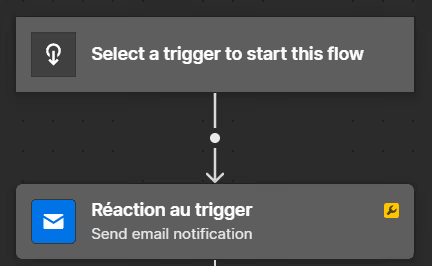
The trigger can be of different types here: a form submission, an order received, a new account created...
Similarly, the reaction to this trigger can take various forms: sending an email, creating an entry in your CMS, publishing an article...
B. Conditional Flow
To achieve a more precise result in your Flows, it is sometimes necessary to add conditions. For example, if a customer orders a product from your store, you want to send them a different email if it's their first order or if they are a regular customer.
To do this, you can add the condition 'Is this customer already in our database?'. If the customer already exists, then you can send them the email for regular customers; otherwise, you can create their profile in your CRM and welcome them.
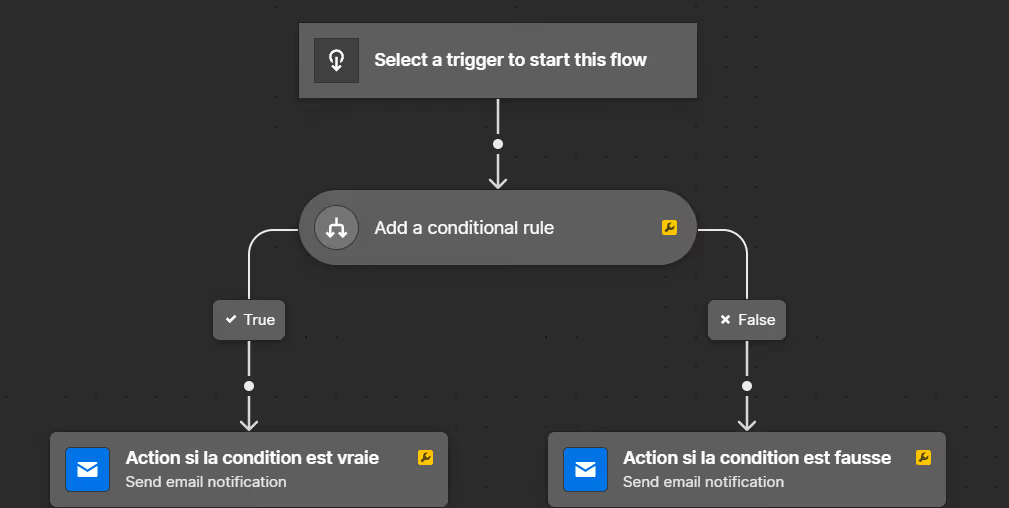
With these conditional flows, you can create automations that will have a tailored response for each eventuality that occurs!
III. Case Study: Integrating customer reviews on your Webflow site
A. Customer Reviews and Submission Form
To illustrate the capabilities of Webflow Logic, we will set up a reader review system on a blog.
To do this, we will first need the following elements:
- A Reader Reviews collection: each review will contain a reader's name, their review, and a blog post reference
-
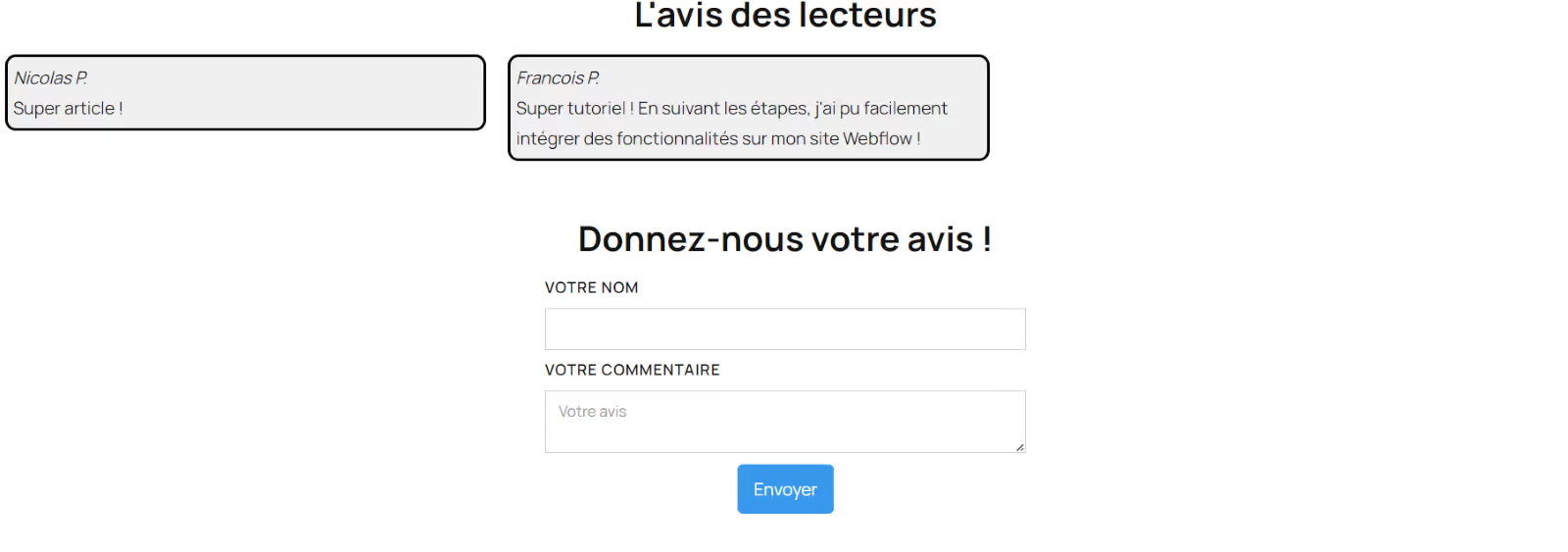
- A review form: this form, consisting of two fields and a "submit" button, will be used by readers to share their reviews.
Once these elements are created, you can integrate your form and the collection onto your blog pages to display the reviews. Here is a functional example.

B. Create a new Webflow Logic Flow
Let's now create the Flow to link the form to your CMS to display the reader's review.
To do this, go to the Logic tab in the Webflow designer (shortcut L), then click on "+ New Flow".
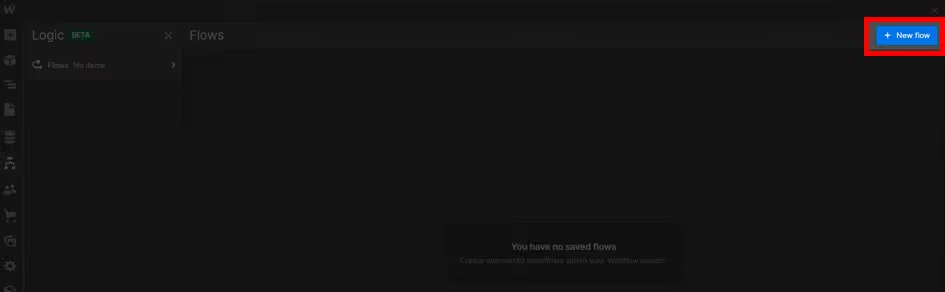
C. Select a Trigger
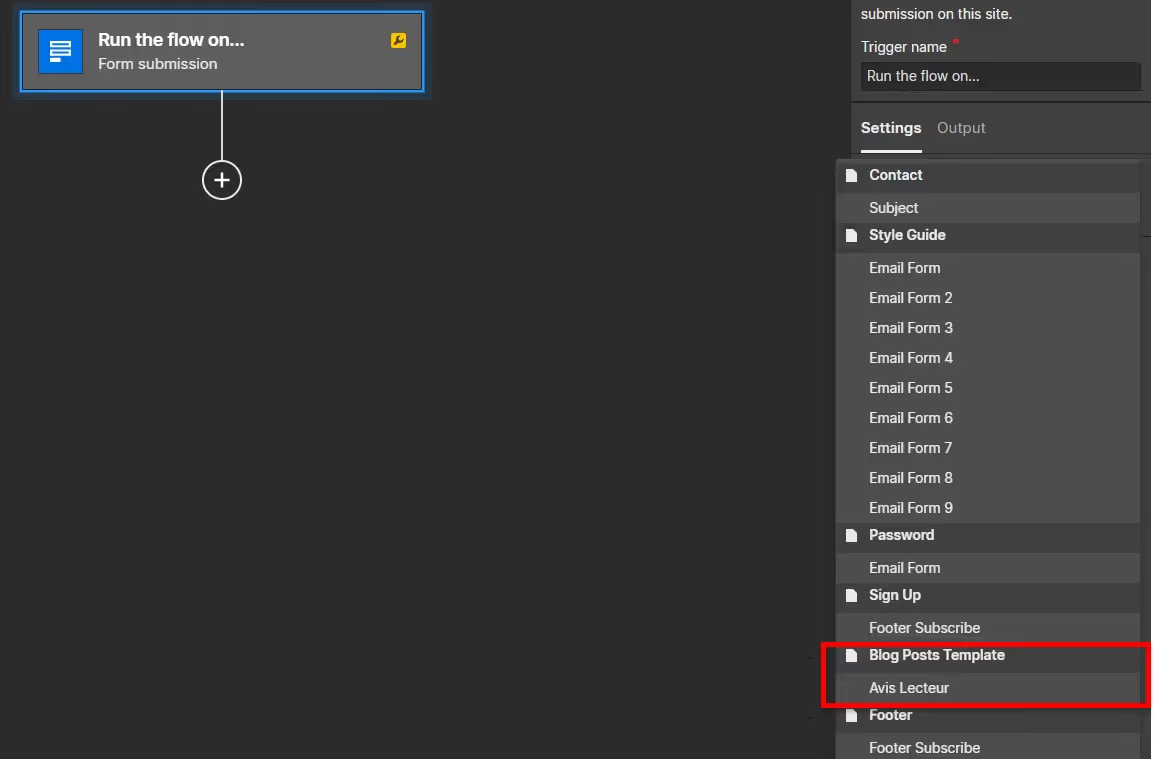
Once your Flow is created, select the trigger of your choice. In our case, we will select "Form Submission"
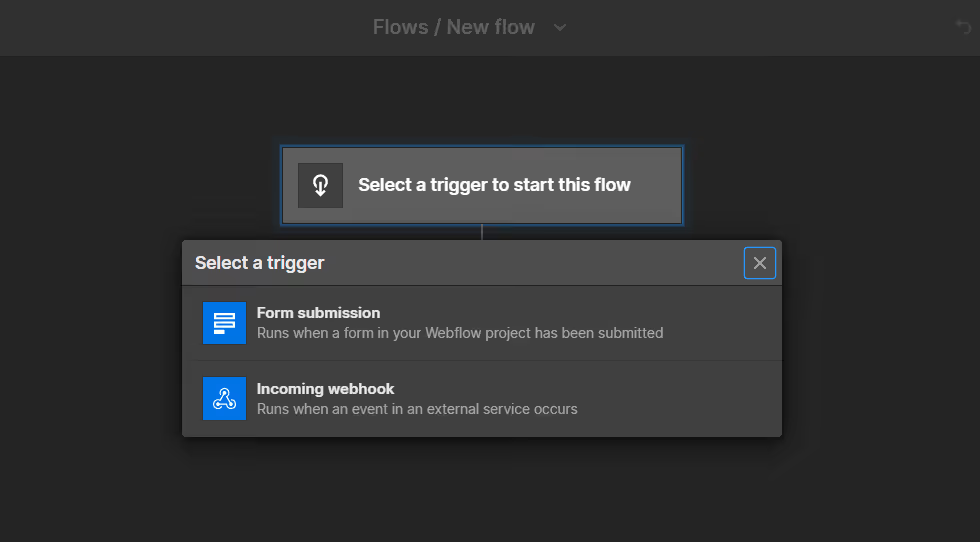
Next, in the "Settings", select theform you want to connect. In our example, we are selecting the "Reader Review" form
D. Select an Action
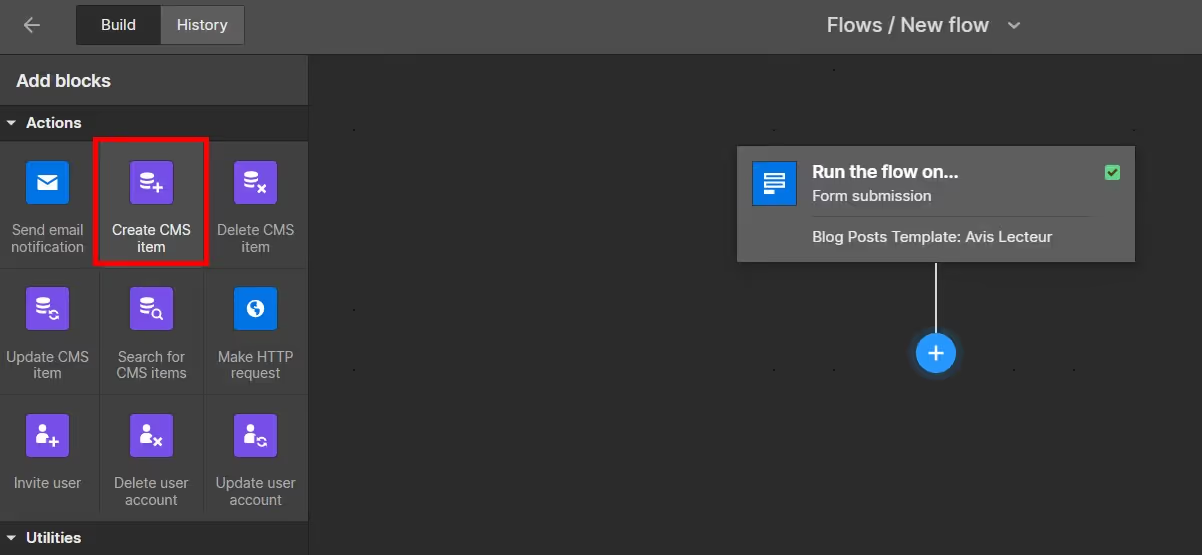
Once the trigger is configured, we will now choose the associated response.
In our case, we will create a new reader review in our Reviews Collection. To do this, click on the '+' below the trigger, then select 'Create CMS item'.
Once the reaction 'Block' has been created, configure the review in the CMS by selecting the associated fields. So, select the 'Name' field in the box for the Customer Name, as well as 'Comment' in the Reader Reviews box.
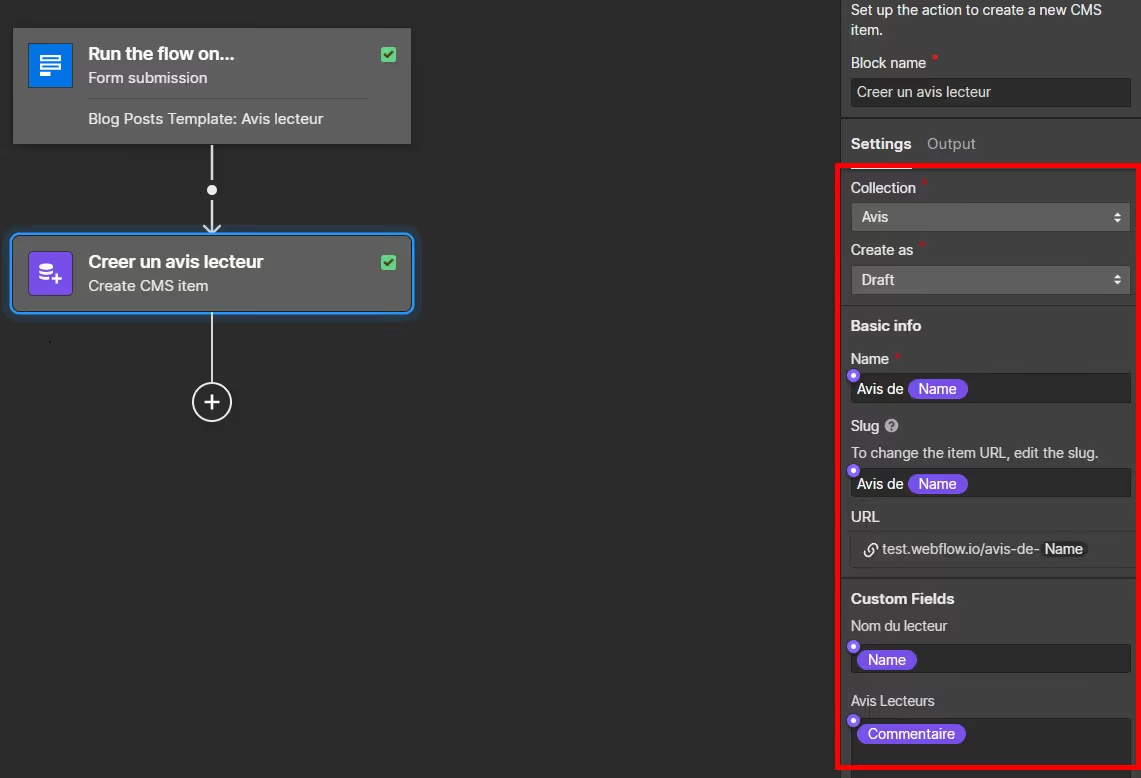
Tip: Keep the 'create as Draft' option so that reviews are not automatically published. This way, you can moderate comments before they are published.
E. Test the Flow
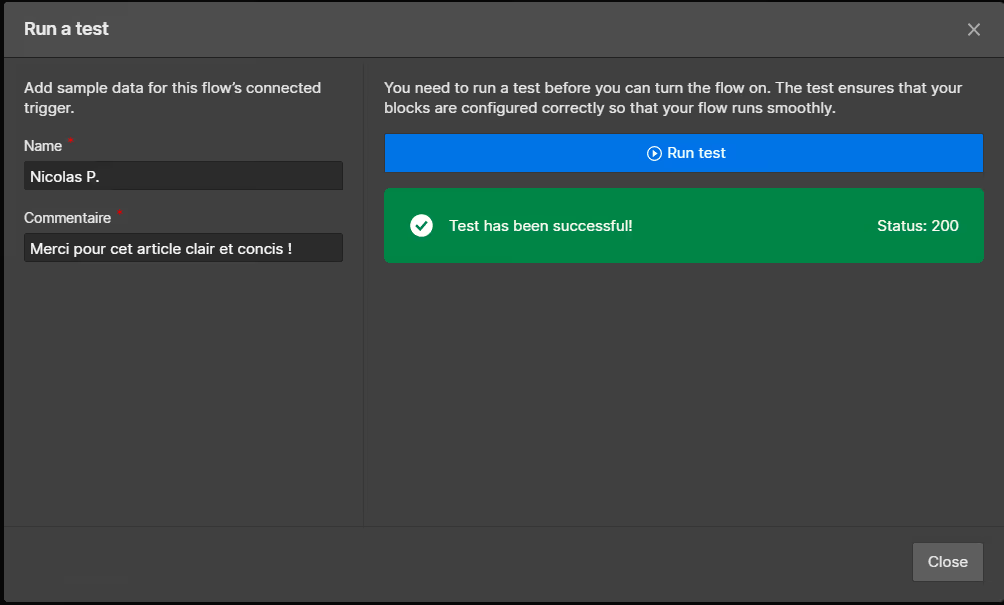
Once your Flow is configured, test its proper functioning using the 'Test Flow' button.
Enter dummy data into the test fields to simulate a reader review and observe the Flow's reaction. Then click 'Run test'.
If you see a pop-up indicating a 200 status, your flow is working correctly!
F. Publish the Flow
Just like your Webflow site, a Flow, once tested, must be published to become active on the live site.
To do this, select 'Stage flow for publish' from the 'Publish' dropdown menu.

Then publish your Webflow site to make your Flow active!

G. Enjoy your automation
Your flow is now configured! Once the message is confirmed and published, it will be visible on your Webflow site.
Thanks to Webflow Logic, you can therefore engage your users and benefit from numerous features and automations. With conditions, we could also have added the commenting reader to our database and automatically sent them a welcome email.
If you are looking for a Webflow agency to help you create automations on your site, we invite you to contact Afalence!
For more information on Webflow and our various tips, find our Webflow tutorials!

See also our other articles
Discutons de vos besoins
Vous cherchez une agence de confiance pour votre projet ? Contactez-nous et découvrez comment nous pouvons vous aider