Webflow SEO | Complete Guide to Optimizing Your SEO

.avif)
.avif)
.avif)
.avif)
You've chosen Webflow as your website creation tool. Congratulations, you've made the right choice! The goal now is to build a site that adheres to Natural Search Engine Optimization (SEO) best practices), so that it can rank first on Google for a large number of queries.
This article will guide you through Webflow's settings to ensure you build a technically sound site with good SEO health. SEO health assesses how well your site adheres to best practices.
I. Webflow's SEO Advantages
1. Optimal Performance
Today, simply writing keywords in your titles is no longer enough to rank well for them. Google considers hundreds of criteria to determine which site best meets a user's query.
One of the fundamental aspects is your site's technical quality: how intelligible your site is to search engines, the accessibility of key pages, loading times…
These are all elements that Webflow integrates and places at the core of its creation process! Indeed, this modern Content Management System (CMS) boasts faster loading speeds for its sites than its competitors, such as WordPress or Wix.
Also equipped with a tool that allows applying different filters, Webflow can simulate the vision of a colorblind person, for example.
As a result, Webflow facilitates the development of accessible websites that are easily navigable by everyone, which is rewarded by Google and increases the chances of achieving better positions in search results.
2. Integrated Tools
Webflow natively integrates a module that identifies your poor SEO practices.
For example, if you forget an Alt text tag on an image, Webflow will flag it. An Alt text tag allows a Google bot to understand the content of an image through a textual description.
These tags also serve visually impaired people, allowing their computer to read them the image description.
Therefore, for all SEO errors, Webflow will alert you and will also offer a solution to correct it.
It's easy to overlook things, so Webflow will notify you and provide the necessary resources to develop an SEO-optimized site.

For more information about Webflow, feel free to browse our complete overview of the tool.
II. How to configure Webflow to optimize your SEO?
1. Indexing your site
The best way to rank well on Google is first to make sure you are indexed on Google at all! To do this, go to your site settings in Webflow, and navigate to the "SEO" tab.
On this page, make sure you have the webflow.io subdomain indexing option set to "ON". This option prevents your site's private version from competing with its public version.
Also check that you haven't blocked Google's robots in the robots.txt file. This file is read by bots that check a page's content to understand it.
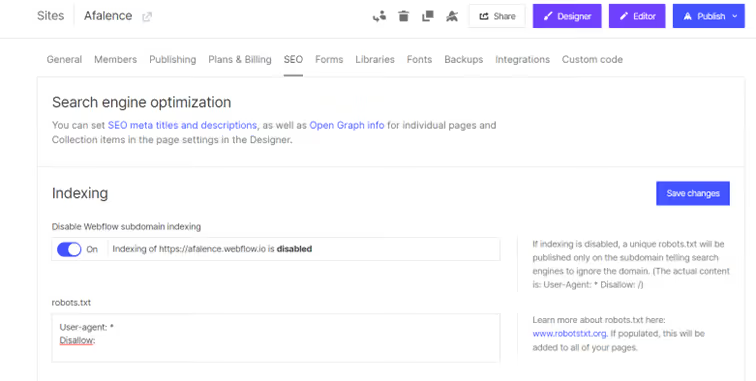
To ensure nothing is blocked, you can include:
User-agent : *
Disallow :
To better understand robot.txt and use it to hide some of your pages, check out our guide on robot.txt in Webflow!
2. Your Site Map
To facilitate site exploration and link all your pages, it's important to generate a file called a "Sitemap." It represents your site's plan: its various pages, folders, and subfolders, as well as their content.
Webflow offers to automatically generate this file. So, make sure you have selected "On" in the "Auto-generate sitemap" section.

Once your sitemap is generated, you will need to submit it to your Google Search Console.
3. Google Search Console Setup
The Google Search Console is a free tool provided by Google to monitor your site's SEO. It notably includes the number of indexed pages and the origin of traffic to your site based on keywords searched by users.
To link your Webflow site to Google Search Console, go to the "Add a property" section and enter your domain name.
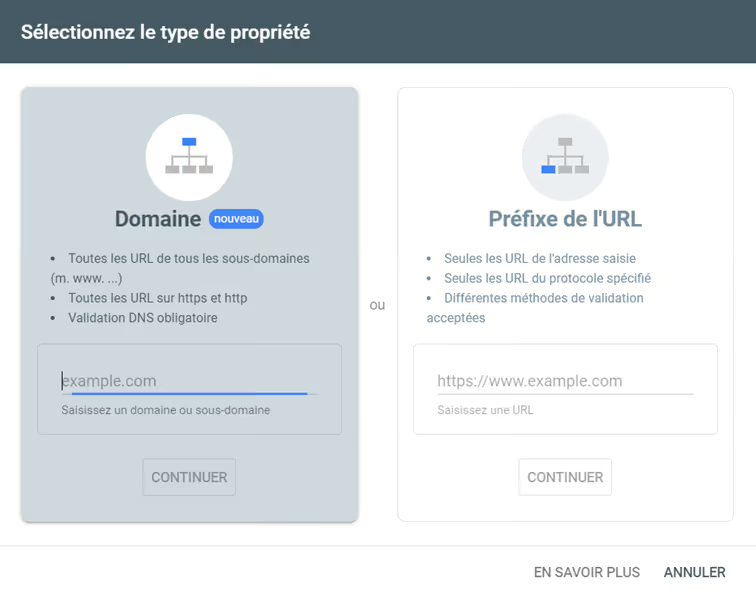
Then choose the HTML Tag option, and insert the received code into the field « Google site verification ID » in the SEO tab of your Webflow site.

Then click on "Save Changes", publish your site, and you're all set! On your Google Search Console page, verify that your site is properly linked and view your statistics.
4. Add the automatic SSL certificate
To combat malicious websites, a site must have an SSL certificate to ensure its security. By providing this certificate to search engines, they analyze your site and verify its integrity. A site without a certificate will be blocked by some browsers and will be heavily penalized in terms of SEO.
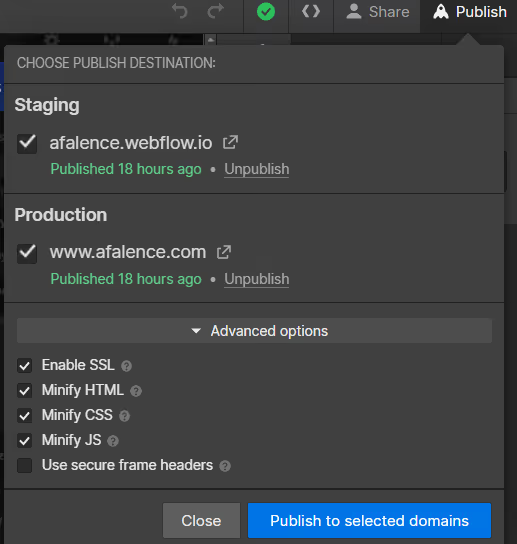
With Webflow's hosting, you can benefit from an automatic SSL certificate for your entire site. In the "Publishing" tab, go to the " Advanced Publishing Options" section and make sure the "Enable SSL" button is set to "On".

5. Configure the pages
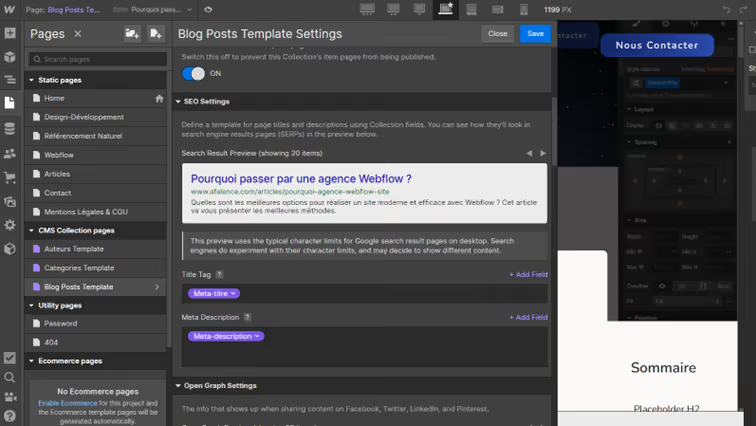
Once your site is properly configured, it is crucial to optimize each page to increase its chances of being featured. To do this, go to your page settings in Webflow, and insert a Meta-Title and a Meta-Description that align with your content.

The Meta-Title, or Title Tag, is the blue title displayed on Google. It should be a maximum of 50 characters, including spaces, to be fully displayed on the search results page. It should inform the user about the topic of the page they are about to land on.
The Meta-Description, on the other hand, can be up to 150 characters, including spaces, to be fully displayed on the search results page. It should succinctly describe the content of the page in question.
For a page generated by a collection, it is possible to generate titles and Meta-Descriptions directly from the editor.
As a reminder, a collection is a database used by Webflow to automatically generate dynamic content, such as a blog page.
To do this, instead of directly typing the text, click on the option "+ Add Field" and select the appropriate field.
III. Tips and recommendations for SEO on Webflow
1. Minimize Code
To increase your chances of achieving good search engine ranking, the page loading speed is an important criterion for Google. To speed up the display of your Webflow sites, enable the minification options for HTML, CSS, and Javascript code. This will reduce the time required for them to load.
2. Use Lighthouse to identify areas for technical improvement on your site
Who better than Google to give us advice on how to rank better on Google? Lighthouse is a tool developed by Google to identify areas for improvement on a site and optimize its SEO from a technical perspective.
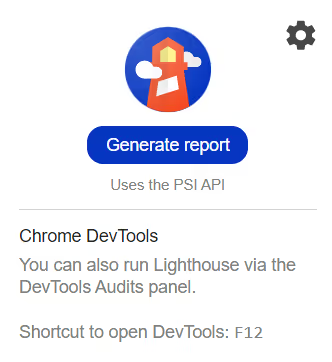
It's a Chrome extension that you can easily install. Once installed, launch the extension on your site and click 'Generate report'.
Once the report is generated, you will find 4 distinct scores. The maximum score is 100.
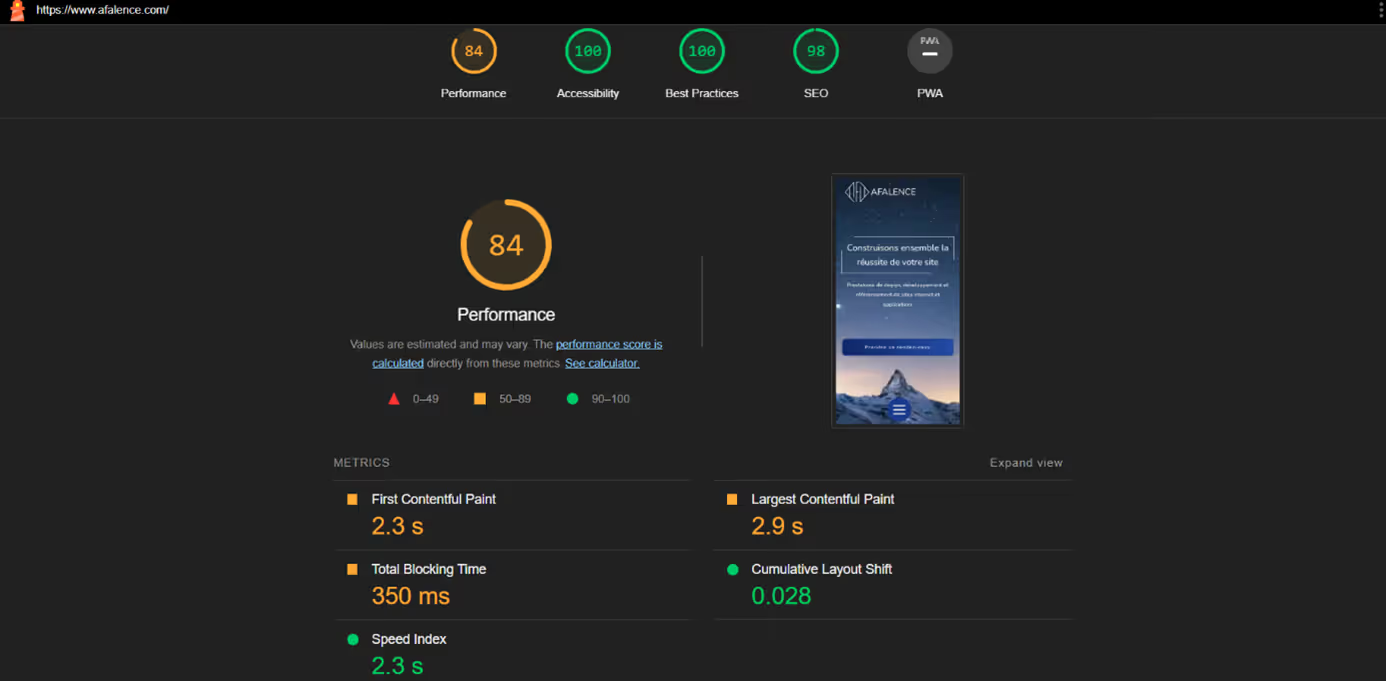
· Performance: This score evaluates your page's loading speed and lists blocking elements. The more animations and images a page has, the slower it will load. For a good balance between design and performance, a performance score of at least 70% is recommended.
· Accessibility: This score evaluates the best practices implemented on your site to ensure it is navigable by everyone. For example, it notifies you if certain contrasts or font sizes are not met, and if the site is easily understood by a screen reader.
· Best Practices: this score evaluates the quality of your site's code. Thanks to Webflow, this score will naturally be high without you needing to take any action. Webflow adheres to best practices and updates regularly. This means your design changes are translated into optimized code by Webflow.
· SEO: the score that interests us most here. This score highlights the technical recommendations to prioritize on your site for better search engine ranking. To optimize your SEO, it's important to maintain the highest possible score.
IV. Frequently Asked Questions
How do I change my Webflow page title on Google?
Go to the Webflow Designer. In your page settings, change the "meta-title" fields to modify the title displayed on Google.
To be fully displayed, it is recommended not to exceed 50 characters, including spaces. You can also modify the "meta-description" field to add a description of 150 characters, including spaces, that announces your page's content.
How do I know if my site is SEO-optimized?
With tools like Google Search Console or Google Analytics, you can track your site's traffic and identify its acquisition channels.
Analyzing this traffic helps identify effective keywords and understand the needs of users browsing your site. Put yourself in the shoes of an internet user looking for information to see if you answer their question or not!
How do I know if I have technical SEO errors on Webflow?
With its SEO recommendation tool, Webflow informs you of any potential SEO errors during your site's development.
For more precise information and a more comprehensive assessment, use Google Lighthouse. This Google extension gives you an overview of your site's performance and its SEO errors.

See also our other articles
Discutons de vos besoins
Vous cherchez une agence de confiance pour votre projet ? Contactez-nous et découvrez comment nous pouvons vous aider