Webflow Comments: How does this new tool work?

.avif)
.avif)
.avif)
.avif)
Work as a team and share your ideas! The new Webflow Comments feature allows you to display messages on your Webflow project.
This feature, already present in popular tools like Google Docs or Figma, facilitates group work and confirms Webflow's ambition to become a comprehensive software used by large development teams.
This article outlines the steps to add and read comments within the Webflow designer.
I. Why use comments in Webflow?
The comments feature in Webflow offers many advantages:
- Collaborative work : Thanks to comments, you can communicate with your team. Comments facilitate decision-making and task distribution. This allows you to react to everyone's actions and provide your feedback on each situation.
- Improved communication : Get real-time feedback! By refreshing your Webflow page, you gain visibility into all up-to-date comments and can therefore communicate synchronously to improve your efficiency.
- Productivity boosted: You no longer need to use different tools to communicate on your Webflow projects, because your tool is now an all-in-one platform! Doing without Slack and similar software allows you to reduce unnecessary context switching between different points of contact. Everything you need is available directly within Webflow.
II. How to add a comment in Webflow?
To access Comment mode, select the comment icon located at the top of your Webflow designer.
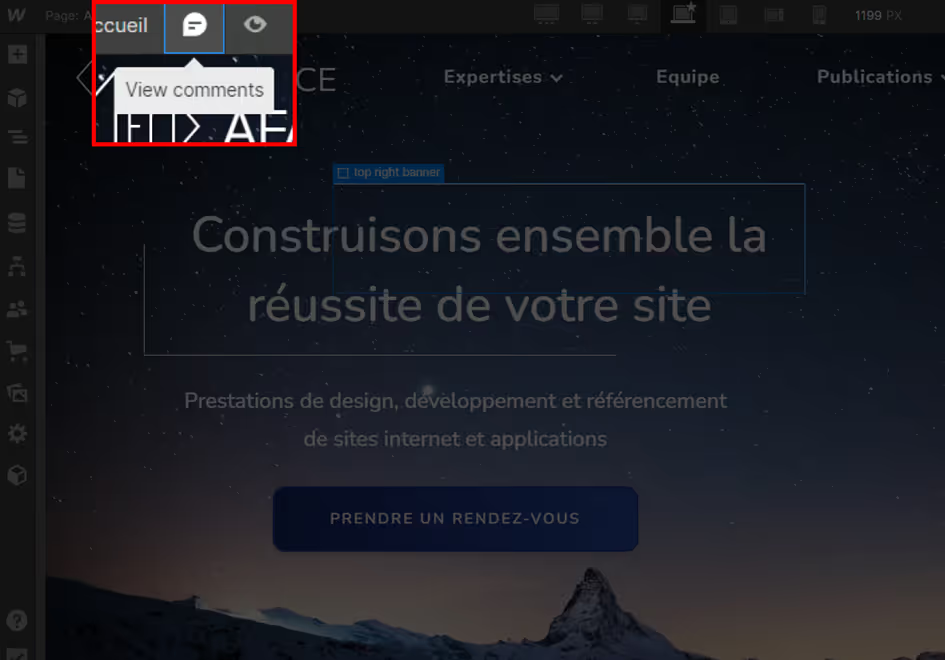
Once in comment mode, your mouse cursor transforms into a comment bubble. Simply click on the element of your choice to add a comment to it! Type your remark in the "Add a comment" field, then click "Post".

Comments can be applied to a specific element, allowing you toinform your team of changes to be applied to it.. This allows you to give instructions like, 'This heading isn't aligned!', without having to explain that it's the first heading of the second paragraph. You save a lot of time and avoid confusion.
Tip: you also have the option to mention a team member by adding '@' before their name. Comments relevant to them are then highlighted, making them easier to find!
III. How to read comments on Webflow?
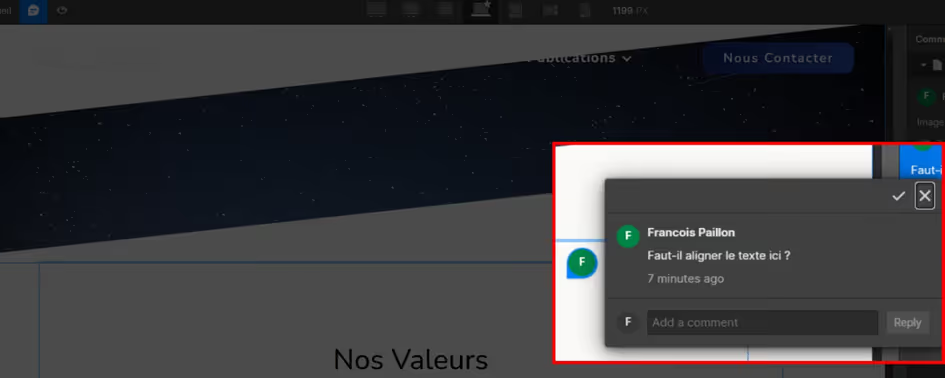
To view all comments on a Webflow page, select Comment mode. You will then see comment bubbles appear on your page. Click on one of them to open the message.
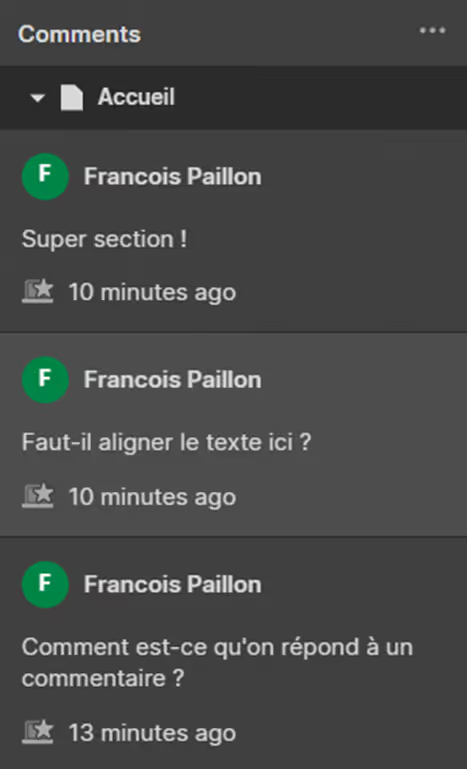
You will also find all comments in the right-hand panel. By clicking on one of them, you will be taken to the message's location. This allows you to directly edit the element that needs adjustment.
IV. How to reply to a comment in Webflow?
Once you're on a comment, two options are available: resolve the comment or reply to it.
To reply to the comment, select the message you want to reply to.
The dialogue box opens, and you can reply directly. You have access to the entire discussion since the comment was created. This allows you to best track actions that have been taken or still need to be completed.

Once the message has been read and the action completed, you can resolve the comment by clicking the checkmark next to the tab close 'X'. The comment will then be removed from the list, and your Webflow project will have taken another step towards its final version!
V. Conclusion
The comment feature in Webflow helps make the tool even more comprehensive and user-friendly. It allows for seamless communication with your colleagues to increase efficiency. Its smooth and intuitive use offers a nearly instant communication mode.
A possible evolution of this feature would be to also offer comments in Edit mode. This way, your clients could also share their point of view and feedback. For now, this option is only available to those working on the Designer.
Other Webflow tips and news will also help you improve your knowledge and productivity with the tool! Find our articles on automation via Wefblow Logic or on the new available structure, Quick Stack !
We also invite you to find all our Webflow tutorials on our blog.

See also our other articles
Discutons de vos besoins
Vous cherchez une agence de confiance pour votre projet ? Contactez-nous et découvrez comment nous pouvons vous aider