Must-have Figma plugins for accessible and responsive designs!

.avif)
.avif)
.avif)
.avif)
If you want to master your use of Figma, you've come to the right place!
This article is part of a series in which we present the best plugins to develop your skills and capabilities in Figma.
So, if you're just starting out with Figma, first check out our getting started guide for the tool and our article explaining how to use a plugin in Figma.
Today's topic is the accessibility of your mockups. As a reminder, digital accessibility means ensuring that anyone can navigate a website, regardless of any disabilities, tools, or browsing conditions they may have.

To design an accessible website, it's crucial to consider these issues from the design phase and during its development.
Below, we list the most useful plugins to ensure your Figma mockups are accessible. They make your work legible for all your collaborators without exception and greatly facilitate the work of developers who bring your projects to life!
I. Stark and Adee, the Most Comprehensive Figma Plugins for Working on Your Mockup Accessibility
Stark is a go-to plugin available on various digital tools (Figma, Sketch, Adobe XD). This plugin addresses the vast majority of accessibility topics : color contrasts, element hierarchy, image descriptions, font sizes…
This plugin is very comprehensive, which is why it's used by over 230,000 people on Figma.
Adee is another very user-friendly and intuitive plugin that offers similar features.. Adee allows you to choose which feature you want to use right from the start.
This makes it even more intuitive because each feature is distinct. However, it's easier to use all of Stark's features quickly since you don't need to reopen the plugin.
These two plugins, however, have two drawbacks:
- You need to create an account to use them.
- The free version has limitations if you want to access all their features.
Below, we offer some completely free alternatives.

II. Figma Plugins for Checking Specific Accessibility Aspects of Your Designs
1. A11y
A11y is a highly popular plugin that analyzes specific elements and typically offers recommendations to enhance your design's accessibility. It's available in two versions, which you can use based on what you need to check:
A11y – Color Contrast Checker will, as its name suggests, check the color contrast between the various elements and text in your designs to ensure they are properly visible to everyone.
A11y – Focus Order will, in turn, allow you to add numerous annotations to your design so that screen readers and other navigation aids can convey the content to their users in the best possible way.

2. Able, Contrast, Contrast Checker
These three plugins assist you in checking the colors used in your mockups so that any user can navigate what you've created.
Contrast Checker is the most basic, but also the most effective of the three for a quick test between two specific colors.
Contrast is more user-friendly and intuitive than Able and offers more features than Contrast Checker.
Able is quite comprehensive and can help you detect common issues related to accessibility and provides you with appropriate recommendations to resolve them.

3. UI Color Palette
UI Color Palette helps you choose accessible color combinations. It offers accessible and sufficiently contrasted color palettes.
4. Color Blind
Color Blind is ideal for visualizing your design by simulating how people with different forms of color blindness would see it. This helps identify and rectify readability issues.

III. Figma plugins to make your mockups adapt to all screen sizes
One of the main challenges for a website's success is its ability to be readable by everyone. This also means being as ergonomic as possible across different screens.
It is therefore essential to prepare the adaptation of mockups to all types of browsing devices right from the design stage. In fact, we sometimes start with the mobile interface before adapting it to a desktop interface (this is called working 'mobile first').
1. Breakpoints
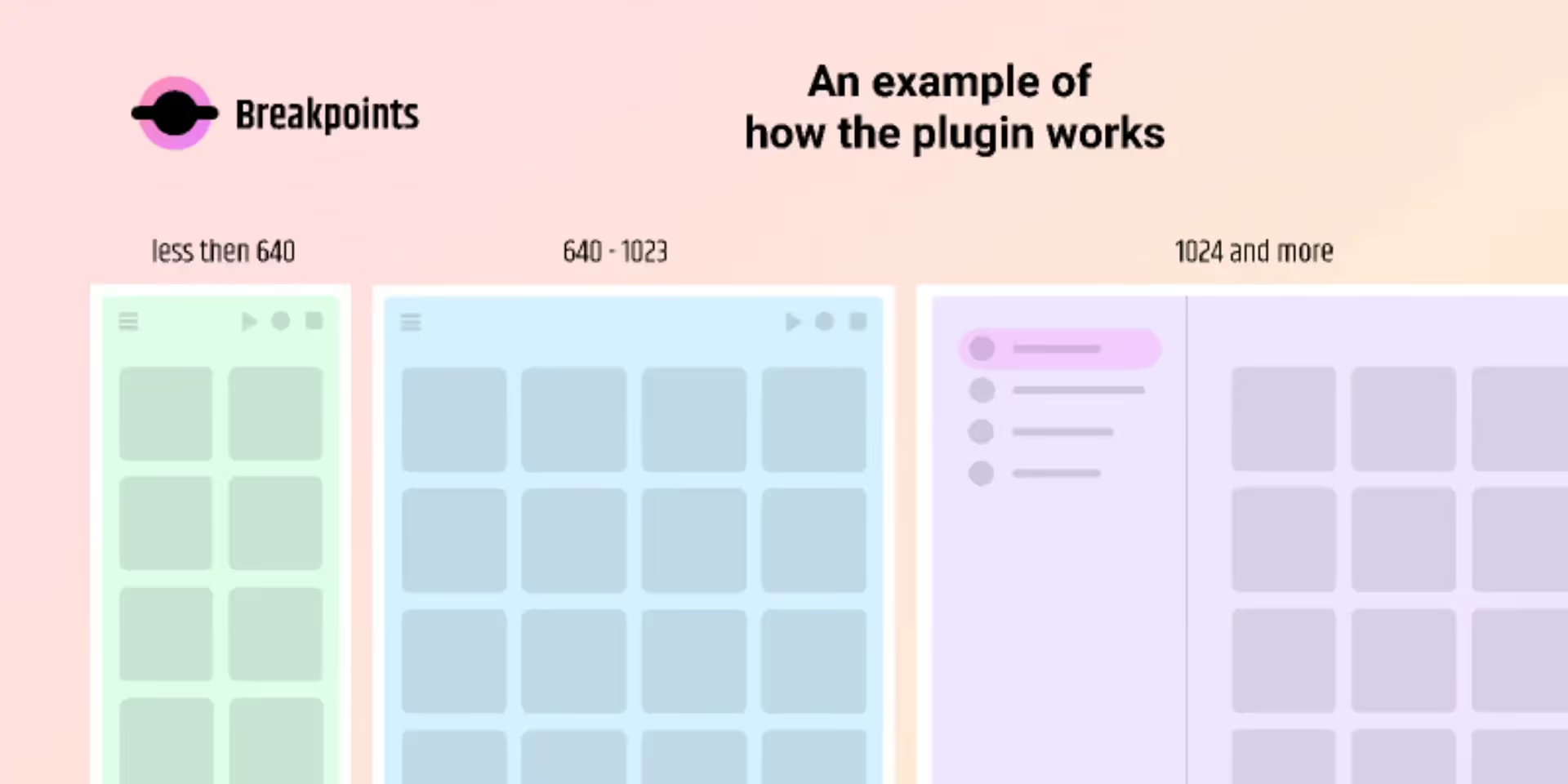
The Breakpoints plugin is used to design directly responsive mockups. It allows you to define custom breakpoints for different devices or resolutions. This makes it easier to create and test navigation on various devices.
Breakpoints, however, is only free for two weeks per design. So, we've listed some alternatives below.
2. Viewports Size Calculator:
Viewports Size Calculator should be used before your design phase preferably. It directly generates frames of the appropriate size for each screen you want to simulate. This means you can create your mockups for different tools in parallel with the correct dimensions.
3. Responsive and Responsively :
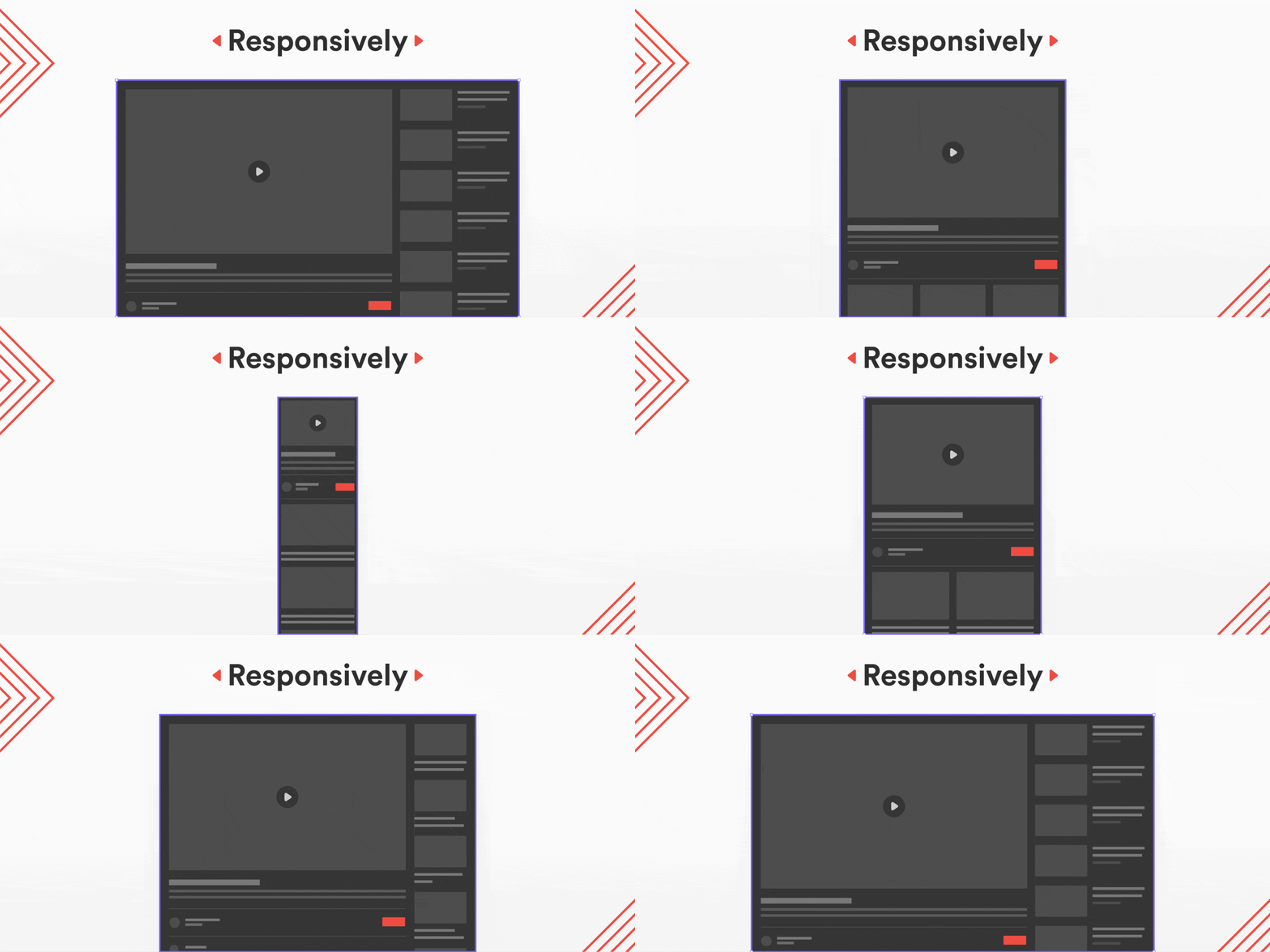
These two plugins offer the same service. Specifically, they allow you to visualize exactly how your design adapts to different screen sizes. Once your various size-adapted mockups are complete, launch one of these plugins to generate a frame that takes the form of either of your mockups, depending on the size you provide.
4. Auto Constraints:
The Auto Constraints plugin allows you to define and manage layer constraints in your mockups. It therefore helps you ensure that your design elements behave appropriately when resized.
5. Reframer:
If you realize at the last minute that your design isn't responsive, you can use the Reframer plugin so that it can suggest other frame formats that are better suited for different screen sizes.
You will be able to select the frame to resize, then choose a screen size and launch the plugin to automatically create a copy of your frame at the chosen size.

You now know about fifteen plugins that can assist you with your designs and mockups. Your creations will be easily viewable by all internet users, without exception, and on all browsing devices!
As a reminder, if you need help using plugins in Figma or getting started with the tool, check out our article that guides you through discovering Figma or our article on using Figma plugins.
We also recommend staying up-to-date. Regularly check for updates to Figma and its plugins. Also pay attention to any new plugins that might be added that could help you improve your work even further. With this in mind, we recommend reading our top 10 essential plugins to make the most of Figma.

See also our other articles
Discutons de vos besoins
Vous cherchez une agence de confiance pour votre projet ? Contactez-nous et découvrez comment nous pouvons vous aider