How to get your Webflow pages indexed?

.avif)
.avif)
.avif)
.avif)
You've published your newly developed page on Webflow. However, when you search for it on Google, your page doesn't appear!
The most likely reason is that your page is not indexed on Google, meaning it cannot be displayed in a search.
How to solve this problem and index pages developed with Webflow?
I. How Google Indexes a Page?
A. What is Indexing and How It Works
Web page indexing is the process by which search engines analyze, catalog, and store a web page in their database, also known as an index. When a page is indexed, it means that it is considered by search engines and can be displayed in the results when a relevant query is made.
To index a page, search engines follow several steps:
1. Search engines send out crawlers to crawl the web. This process is known as crawling. These robots follow internal and external links on a page to discover new sites and add them to their list of pages to explore.
2. When crawlers visit a page, they analyze its content. This includes text, images, links, and HTML tags. They extract information about the page's structure and relevant keywords. For more information on these elements, we invite you to read our articles on title tags and on meta description tags.
3. Once a page's content has been analyzed, the relevant information is stored in the search engine's index. The index is a database that lists all web pages discovered by the search engine and organizes them according to their content and relevance.
B. Details on Page Indexing
When a user performs a query in a search engine, it uses its ranking algorithm to determine the most relevant pages to display in the results. Indexed pages are considered during this ranking process.
It is important to note that indexing does not guarantee that the page will rank high in search results. Ranking depends on many factors, such as content relevance, quality of inbound links, user experience, etc. However, without indexing, the page will be invisible in search results.
To optimize your natural referencing (SEO) and increase your chances of achieving a good search ranking, we invite you to read our complete guide to natural referencing.
II. How to Index Your Webflow Site?
A. Allow Indexing in Webflow Settings
To get into Google's index, you first need to ensure that indexing is enabled for your Webflow project's pages!
To check this, go to the "SEO" tab in your Webflow settings. Make sure that the "Disable Webflow subdomain indexing" option is set to "On".
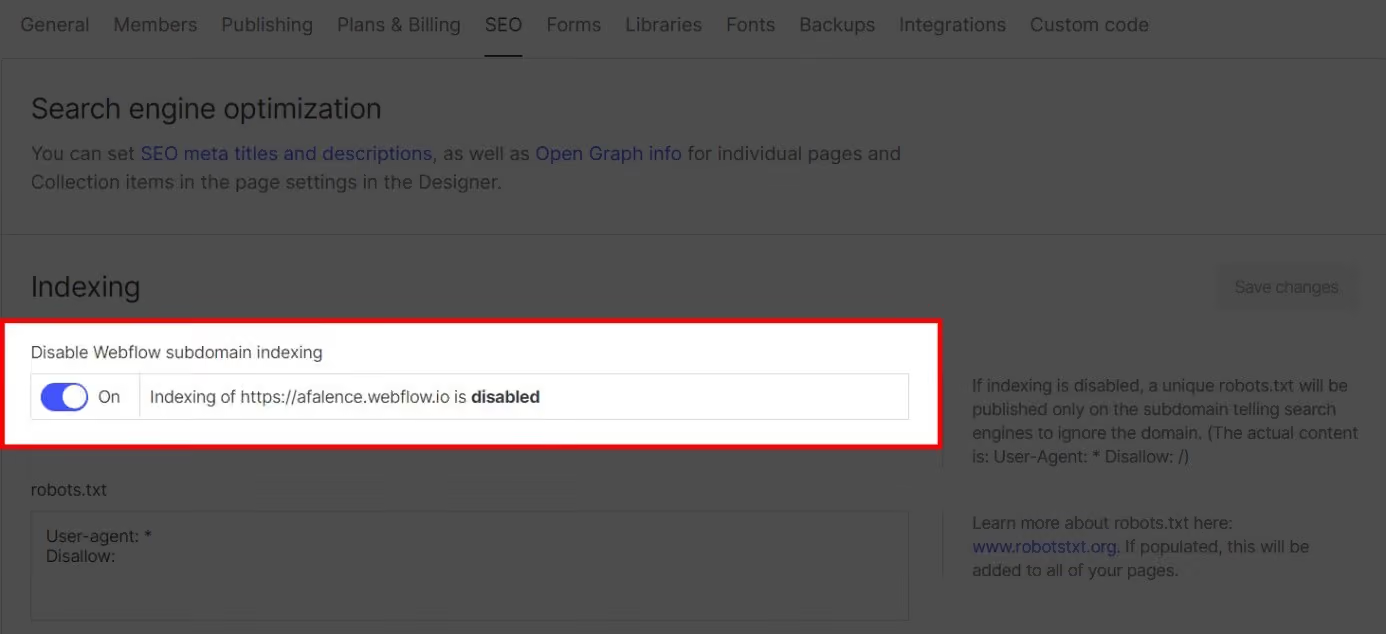
This option disables indexing of the webflow.io subdomain, which will prevent duplicate content from appearing on your main domain.
To be properly indexed, always keep this option set to "On"!
B. Configure Your Robots.txt File
The Robots.txt file is a tool that prevents search engine robots from crawling pages. This file is particularly useful for de-indexing pages with low added value or those containing errors.
A misconfigured Robots.txt file can therefore lead to your site being completely de-indexed!
To configure this file on Webflow, head back to the "SEO" tab in your Webflow settings. Here you can edit your Robots.txt file.
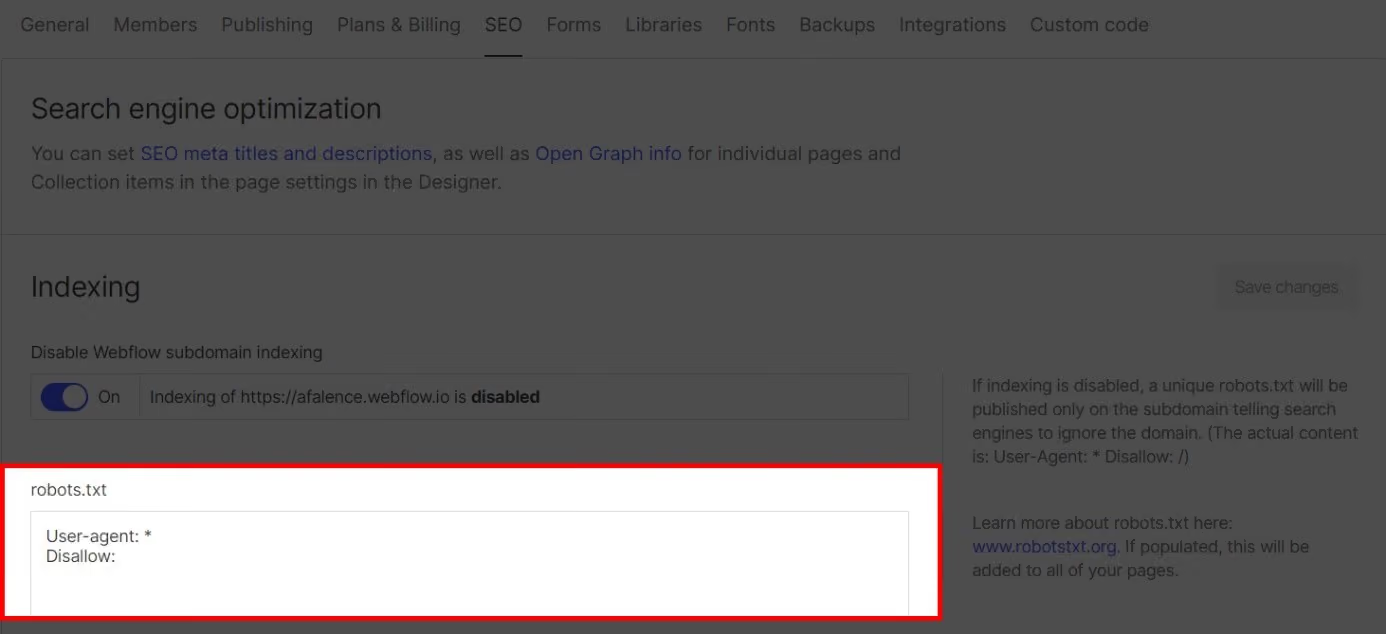
To allow all your pages to be indexed, we recommend writing:
User-agent: *
Disallow:
To get more information about robots.txt files and manage them more precisely, we encourage you to read our article on the configuration of robots.txt files on Webflow!
C. Check Indexing with Google Search Console
Using the tool Google Search Console, you can check the indexing status of your pages.
You can also manually request a page to be indexed, which can speed up the process. This action is relevant when publishing a new page or making modifications.
To do this, go to your Google Search Console and enter the URL of the published page.
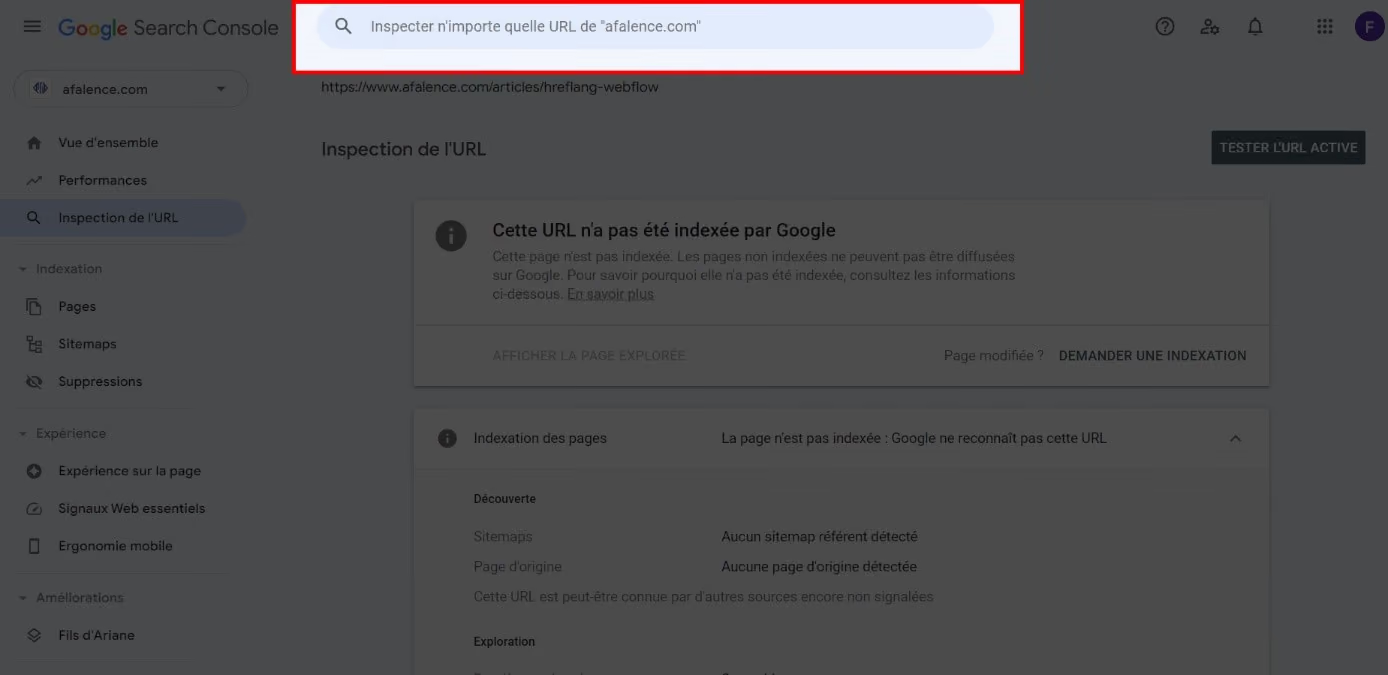
This will give you an overview of your page's indexing status. If your URL is not indexed on Google, click on "Test Live URL" to check if your page can be indexed or not.
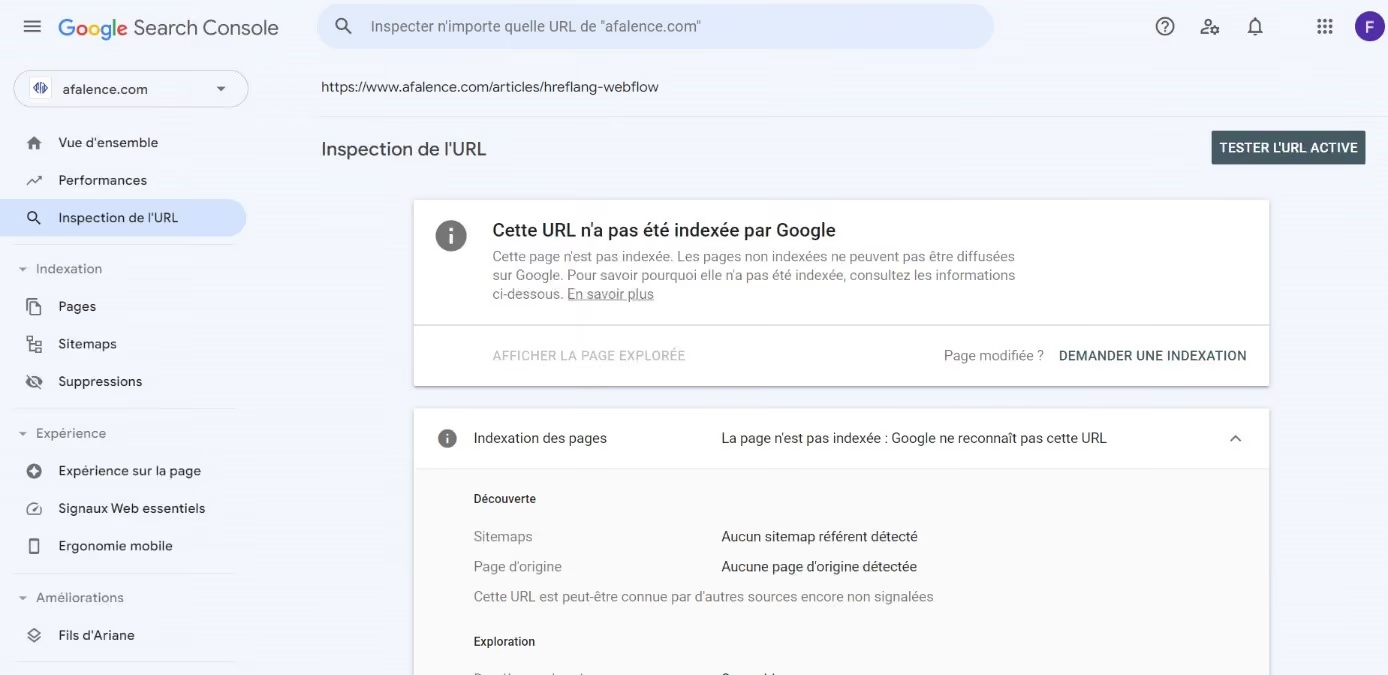
Once the test is complete, if Google is able to index your page and the signals are green, click on "Request Indexing" to initiate a crawl of your page.
Please note that even with a manual request, Google's robots may take a few days to crawl and index your page.
On Google Search Console, you can also get an overview of all your indexed pages in the "Pages" tab.
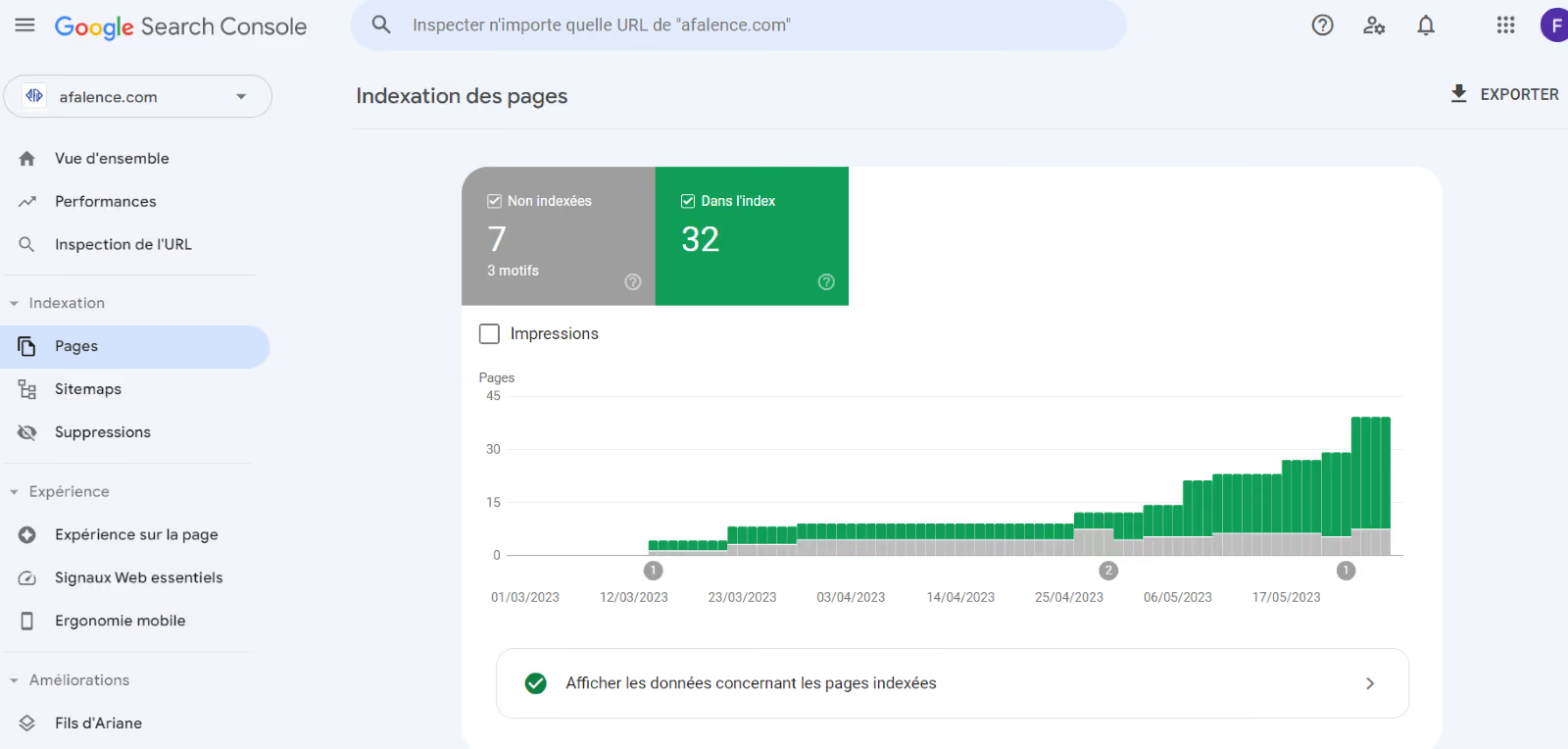
By clicking on the unindexed pages, you'll find out which pages are not in Google's index and why. This will allow you to correct potential errors and get all your pages back on Google.
You now have all the tools you need to properly index your Webflow pages! For more technical tips, we invite you to read our guide on Webflow SEO.
For more information on organic SEO to generate more traffic to your site, check out our complete guide to organic SEO!

See also our other articles
Discutons de vos besoins
Vous cherchez une agence de confiance pour votre projet ? Contactez-nous et découvrez comment nous pouvons vous aider