The Complete Figma Guide: Everything You Need to Know to Get Started

.avif)
.avif)
.avif)
.avif)
Heard of web design or Figma and wondering what it's all about or how to get started? You've come to the right place!
First off, what is web design?
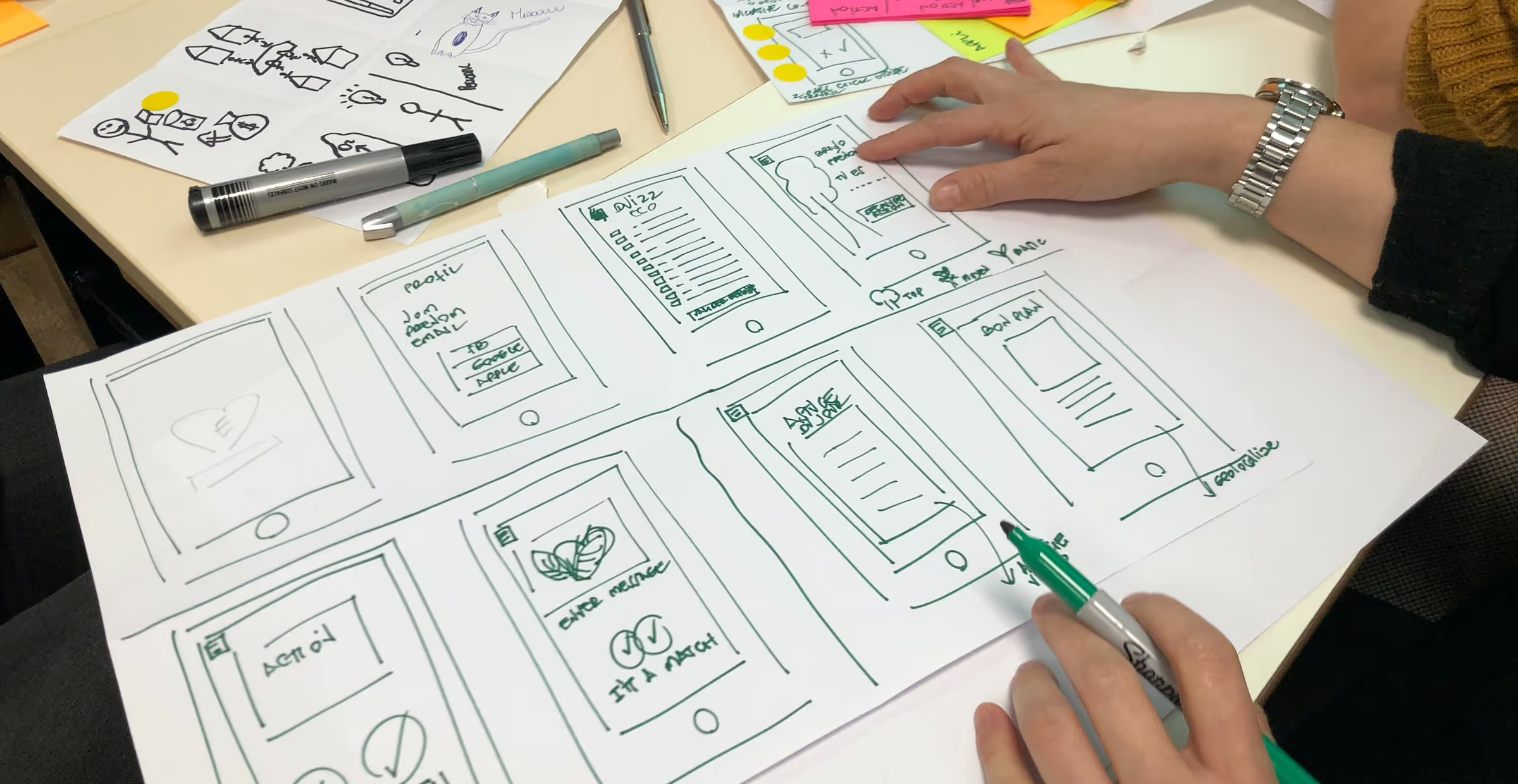
Web design encompasses all the actions involved in creating a website. This includes various elements or stages specific to its design,
including:
- The creation of the site's architecture and information hierarchy
(also known as the Wireframe)
- The organization of pages and the placement of various elements
within them
- Focusing on the user's navigation experience on the site (UX)
- The aesthetic design, i.e., the purely visual aspect, of the website
It's important to note that the actual development of the website is not part of web design. For many years, various web design tools coexisted. Adobe XD, Sketch, InVision, Marvel, and
Moqups are among the most well-known of these tools. They each have strengths and limitations, leading designers to prefer one over another.
In recent years, however, one web design tool has stood out and seems to be universally acclaimed: Figma.

I. Why use Figma?
1. Benefits of Figma
Figma is a free web design tool in its basic version, becoming a paid service after 6 shared work pages. This tool is very easy to learn and extremely intuitive.
It offers almost complete design freedom.
Figma is very comprehensive in the features it offers, so much so that your creativity is the only limit you might encounter.
Furthermore, it's easy to share your work and manage access for different users, whether they are colleagues or clients. We will show you how to get started with Figma
later in this article.
For now, let's first look at the tasks you should be performing with Figma.
2. What types of tasks can Figma be used for?
A. Creating Brand Guidelines and Communication Materials
Figma is a tool where you can easily import fonts, conduct color research, or design a vector logo. These features make it an excellent tool for shaping a company's visual identity.
Furthermore, the ability to group any number and type of elements and then export them in various formats also makes it
an excellent tool for creating communication materials such as
flyers, brochures, or business cards.
However, make sure to respect visual codes and conventions when creating these types of elements.

B. Designing Wireframes
As we mentioned in the introduction to this article, a website's wireframe is its skeleton. It involves the architecture, sitemap, and organization of the upcoming site's pages. One of the go-to tools for creating wireframes is
Miro (see image below).
Wireframe creation is usually preceded and accompanied by in-depth user experience (UX) research. This research helps design an interface that is
optimized for navigation as well as for user conversion.

Figma is perfectly suited for wireframe design. Indeed, the great flexibility the tool offers in design, combined with the ability to create "components" (generic elements that can be reused as desired), makes wireframe creation easy and efficient.
Furthermore, Figma was primarily designed for design. Thus, it offers the ability to refine the aesthetics of wireframes to
make them clear and understandable for all audiences.
C. Design Mockup Creation
Both in pure visual creation and in the integration of animations and interactions, the mockups created on Figma achieve a level of
unparalleled detail and customization.
This provides a preview of the upcoming site that is practically identical to the final result and saves a lot of time for the
developers who will bring the mockup to life.

II. How to get started and use Figma effectively?
1. Workspace Organization
A. What are Figma pages and how to use them?
First, all graphic design work begins with good workspace organization.
When you create a project, you can include different pages. These function like tabs with infinite canvas space. We recommend using at least two pages per project:
- The first page, often conventionally called a UI Kit (User Interface Kit), is used to store all the elements you'll need during the design process. This will primarily include the graphic charter: logo,
typography and styles of the different headings, colors.
It will also contain the elements you will create and need recurrently: buttons, menu (navigation bar),
footer, image sizes, and text boxes…
- The second page is where you will create your wireframe (site skeleton). This wireframe can then become your visual mockup, but you can also decide to create a third page
for the visual mockup itself.
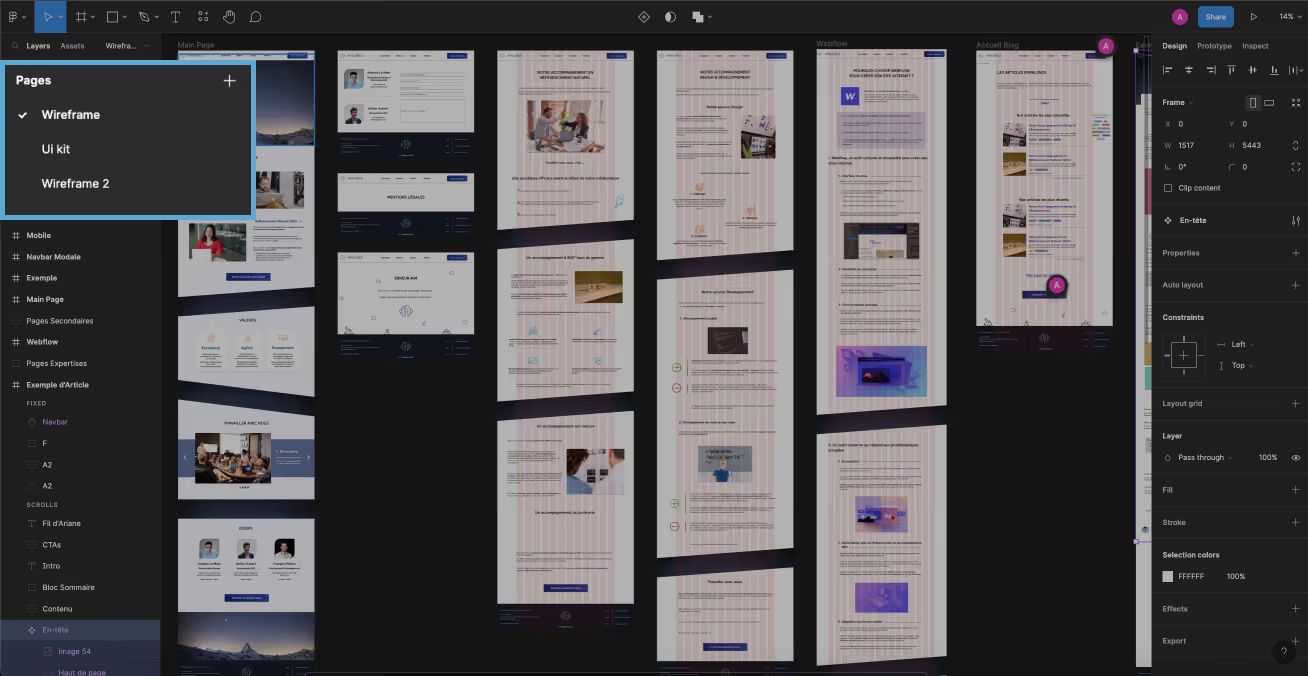
B. What are frames and what are they used for?
Within your pages, you work within what are called "frames." These are worksheets with characteristics
of your choice. By convention, a frame corresponds to a page of the site.
We recommend that you choose the width of your frames in line with a frequently encountered screen size (1440 or 1512, for example, correspond to the screen sizes of a majority
of laptops such as Macbooks).

Furthermore, it is important to consider how your site displays on a phone screen. As a result, many designers work "mobile first." This technique involves creating the mockup in mobile format before adapting it for desktop.
If you don't choose this option, we strongly advise you to create the mobile mockup in parallel with the desktop mockup. In fact, developers and the rest of the teams need to visualize both
the desktop preview and the mobile preview to be able to envision and
perform their work as efficiently as possible.
You can also choose to create a page entirely dedicated to mobile design, if you wish.
Finally, remember to name all the frames you create. For example, the homepage could be named "Landing Page" or "Home". The frame representing the contact page will probably be called "Contacts" or "Contact Page". This will help you stay organized in your work and allow your collaborators to easily find the elements they might be looking for.
Tip: "double-clicking" on a frame's name allows you to rename it directly!
2. Element Organization and Naming Convention
When you create or add elements (images, shapes, text, buttons, etc.) to your frames, it's crucial to name and organize them properly. Indeed, when you're designing a website with many pages, frames and elements will quickly multiply.
If you forget to rename them, you'll have trouble finding the
elements you're looking for in your workspace.
Organizing elements into groups (keyboard shortcut Ctrl/Command + G) will not only allow you to sort and find them easily, but also, and most importantly, to move them together when you're working on the layout
of visual elements (when creating wireframes, for example).

Tip : in your element tree located on the left side of the Figma screen, the higher an element is, the more it's considered "foreground." If you want to move an element behind another or include it within another element, simply "drag and drop" it directly into or below the second element!
3. Using Components
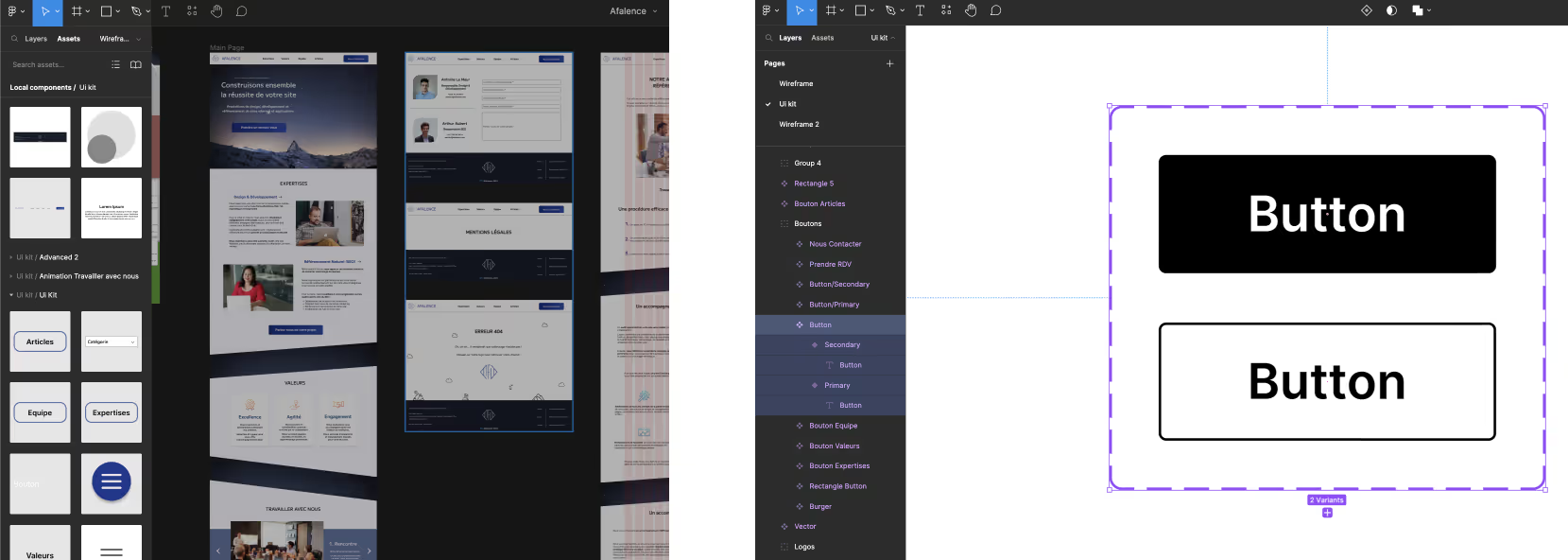
When you create elements that you'll use repeatedly, the best practice we recommend is to create these elements on the page called "UI kit." You can then define them as "components," meaning Figma recognizes them as a new, distinct element. As a result, you'll be able to find them directly in the "Assets" category of your toolbar on the left. This allows you to integrate them into your frames frequently and very easily.
The second benefit of components is that you can create variations of them. This means thata component will have several "states" that will alternate depending on the interactions you have with them. This is particularly useful in "Presentation" view to add interactions and animations to your designs. To learn more, we invite you to consult our article on Figma components.
4. Figma Plugins: The Community's Contribution
Figma is a tool with a vast array of features, offering designers immense freedom. It's a tool that allows you to save a lot of time and is particularly useful for
collaborative work.
However, it's always possible to optimize the use of such a tool. The Figma user community can do this themselves: each user has the ability to create auxiliary programs.
These auxiliary programs, called plugins, serve to further complement and enhance the services offered by Figma for specific tasks. In the vast majority of cases, their use is
free and requires no download:
Simply search for a plugin in the toolbar and press
“Run” to use these services instantly!

Plugins enable any user to be even more productive and efficient in their web design work. For example, Unsplash lets you load royalty-free images directly into Figma
without having to search for them online.
Remove BG will let you remove an image's background without needing Photoshop. Finally, Split Shape lets you divide a shape into multiple equivalent shapes that will occupy the same space.
If you'd like to learn more about Figma plugins, we've written an article for you that tells you everything you need to know about Figma plugins, as well as a Top 10 Must-Have Figma Plugins.
We hope this article has given you a good overview of how to use Figma and helped you get started with this tool.

See also our other articles
Discutons de vos besoins
Vous cherchez une agence de confiance pour votre projet ? Contactez-nous et découvrez comment nous pouvons vous aider